CCNP Security SISAS 300-208 Official Cert Guide (2015)
Part VIII: Appendixes
Appendix B. Configuring the Microsoft CA for BYOD
With ISE 1.2 and previous versions, the vast majority of Cisco ISE deployments have been using the Microsoft Certificate Authority as their certificate authority (CA) for BYOD. Therefore, this appendix is included to provide some information on how to configure the Microsoft CA for use in the BYOD solution.
CA Requirements
For the Microsoft CA to provide all the functions necessary, it must meet the following requirements:
 Windows 2008 R2 Enterprise Server.
Certificate Enrollment Web Service and Certificate Enrollment Policy Web Service must be installed.
The Windows 2008 R2 Enterprise server must be joined to a domain.
An Enterprise CA is required. The Certificate Enrollment Web Service cannot be configured to work with a standalone CA.
Other Useful Information
The Certificate Enrollment Web Service can be configured to work with an Enterprise CA on the same server or a different server.
The services can be installed on the same computer as the CA, Web Enrollment, Online Responder, and Network Device Enrollment Services (NDES) role services.
However, if you intend on using the NDES service for certificates issued to a Cisco IOS device (for example, Cisco CVO deployment), you will need to run Certificate Enrollment Web Services on a separate server from NDES.
This is due to an IIS incompatibility with SCEP-to-IOS routers when NDES and CWES are running on the same server. If you do run on separate servers, be sure to review the MS hotfixes listed in the next section.
Microsoft Hotfixes
http://support.microsoft.com/kb/2483564—Renewal request for an SCEP certificate fails in Windows Server 2008 R2 if the certificate is managed by using NDES. This issue occurs because NDES does not support the GetCACaps operation.
http://support.microsoft.com/kb/2633200—NDES does not submit certificate requests after the enterprise CA is restarted in Windows Server 2008 R2. You will see the message The Network Device Enrollment Service cannot submit the certificate request (0x800706ba). The RPC server is unavailable in the Event Viewer.
AD Account Roles
You will use two Active Directory accounts for the ongoing operation of the CA and NDES. Those two accounts will serve for the following roles:
1. SCEP Administrator—Used to install the NDES role service and must meet the following requirements:
Member of Domain Admins or Enterprise Admins
Enroll permissions on the Certificate Authority template (completed later)
2. SCEP Service Account—Used by the NDES application pool for the application to Run As. The account must meet the following requirements:
Member of the local IIS_IUSRS group
Request permission on the configured CA
Read and Enroll permissions on configured device certificate templates
Configuration Steps
In this section you will install the CA with the critical services and then go back and add the remaining services in another configuration section.
Installing the CA
Begin by creating the service account:
Step 1. Add a new Active Directory user, such as SCEP_User.
Step 2. Ensure the user is added to the IIS_IUSRS local group.
Step 3. Install Active Directory Certificate Services.
Step 4. From Server Manager, select Add Role.
Step 5. Select Active Directory Certificate Services.
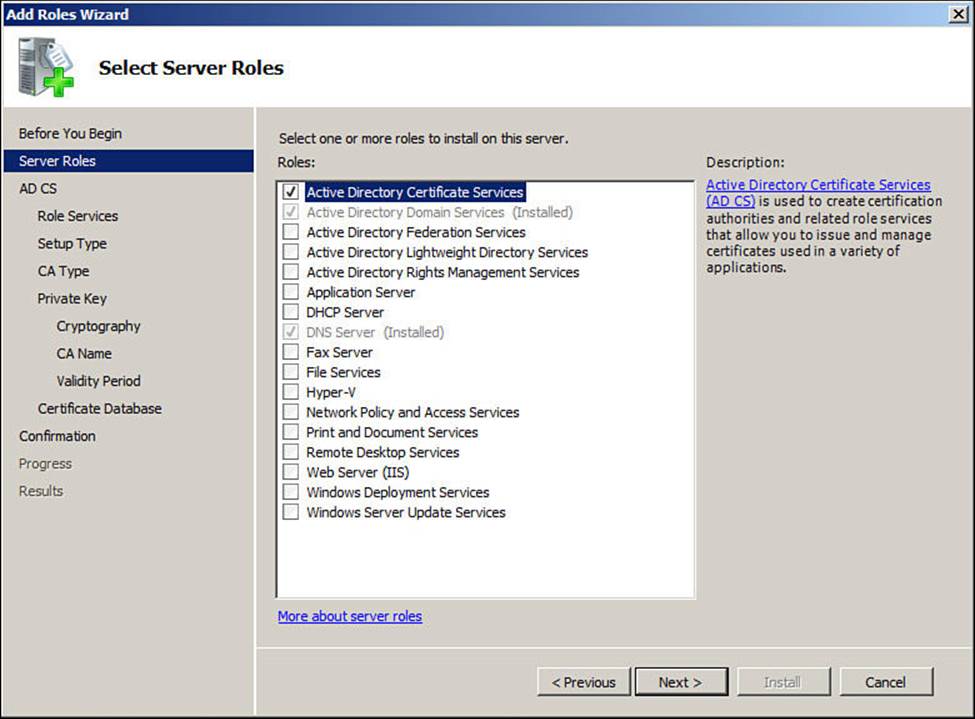
Figure B-1 Add Active Directory Certificate Services.
Step 6. Click Next.
Step 7. Select Certification Authority, Certification Authority Web Enrollment, Online Responder, and Certificate Enrollment Policy Web Service.
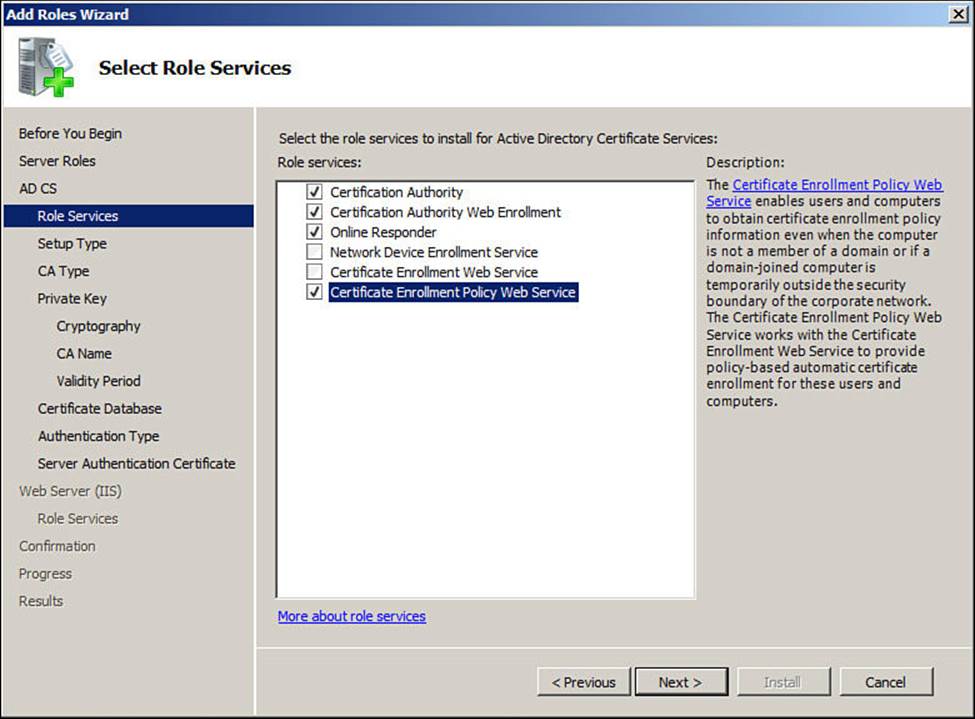
Figure B-2 Selected role services.
Step 8. Click Next.
Step 9. Select Enterprise to use Directory Services with the CA.
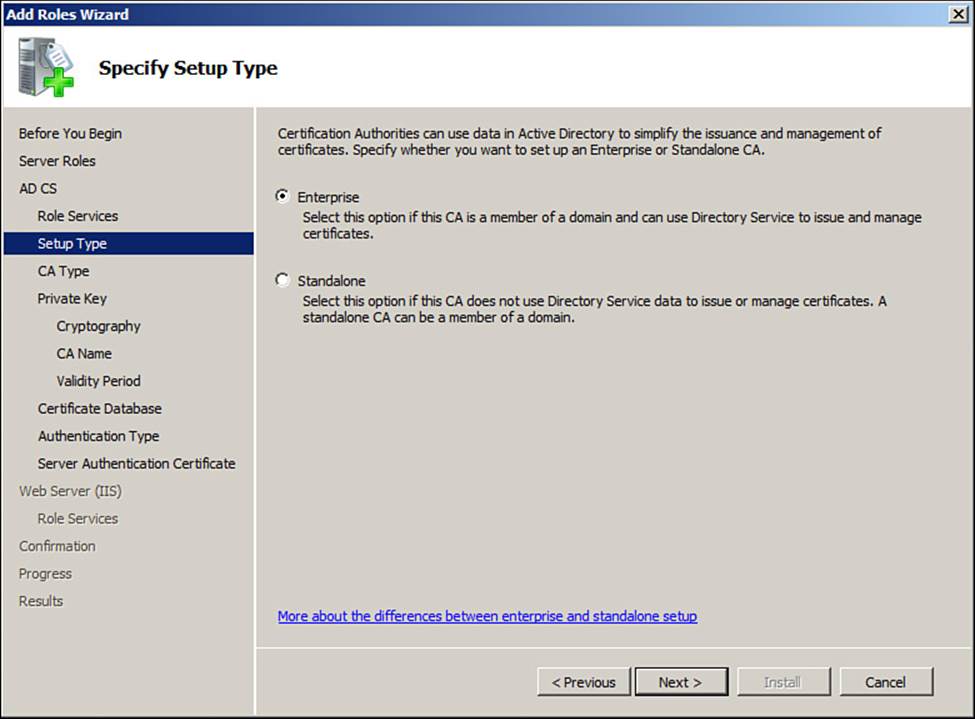
Figure B-3 Enterprise.
Step 10. Click Next.
Step 11. Specify the CA type. If this is a new CA, it should be root.
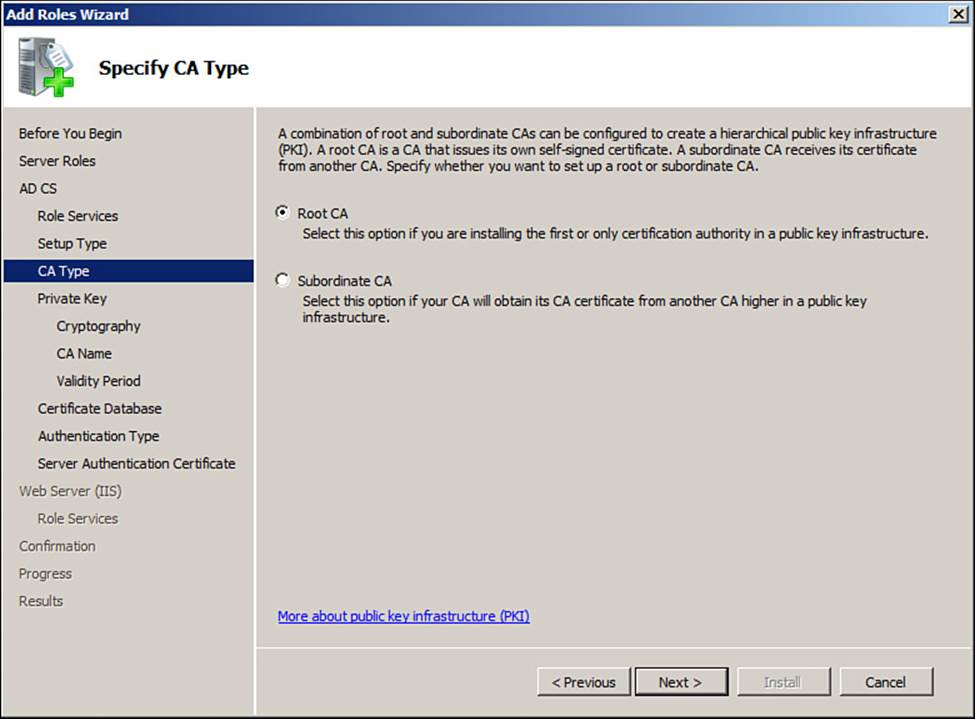
Figure B-4 Root CA type.
Step 12. Click Next.
Step 13. Create a new private key.
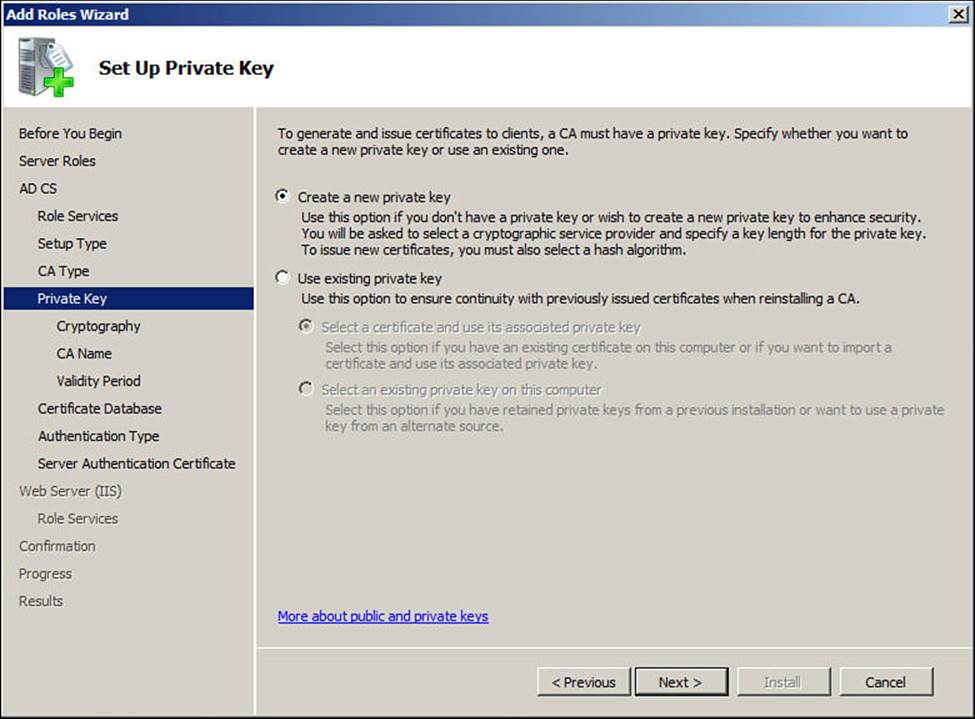
Figure B-5 Set up a private key.
Step 14. Click Next.
Step 15. Configure the cryptography for the CA.
Step 16. Most of the installations we have been involved with use the settings shown in Figure B-6.
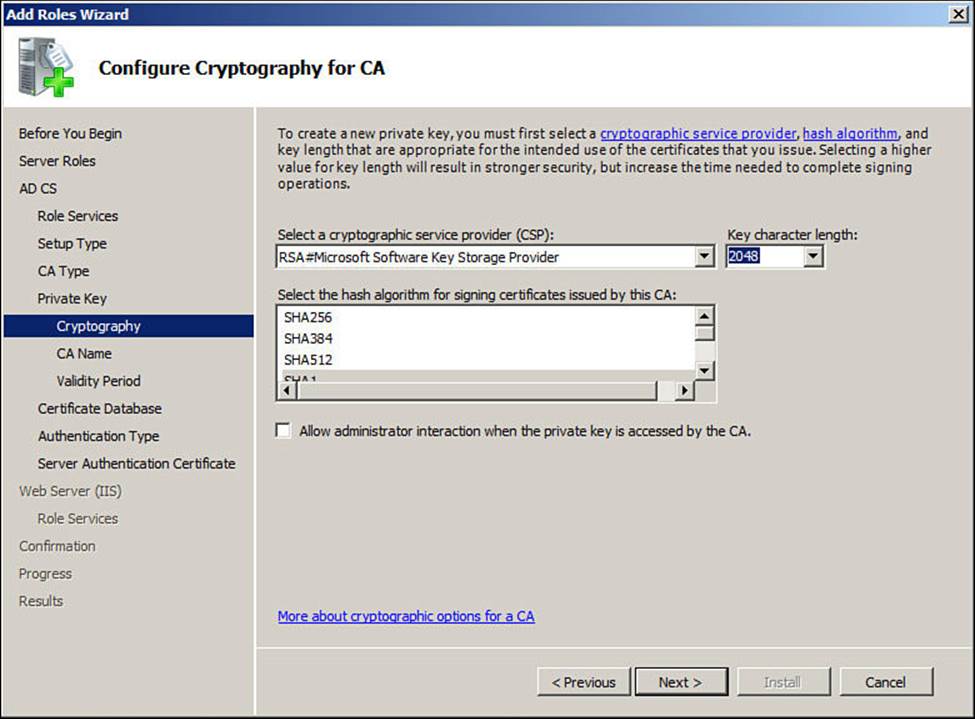
Figure B-6 Configure cryptography.
Step 17. Click Next.
Step 18. Configure the CA name.
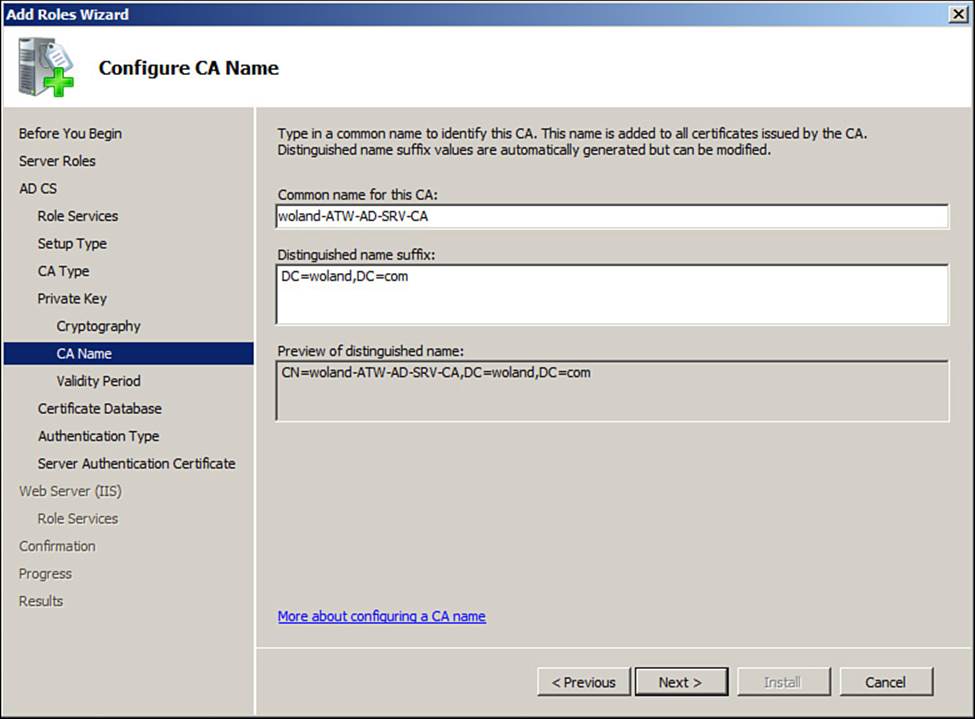
Figure B-7 Name the CA.
Step 19. Click Next.
Step 20. Set the validity period per your company’s information security policy.
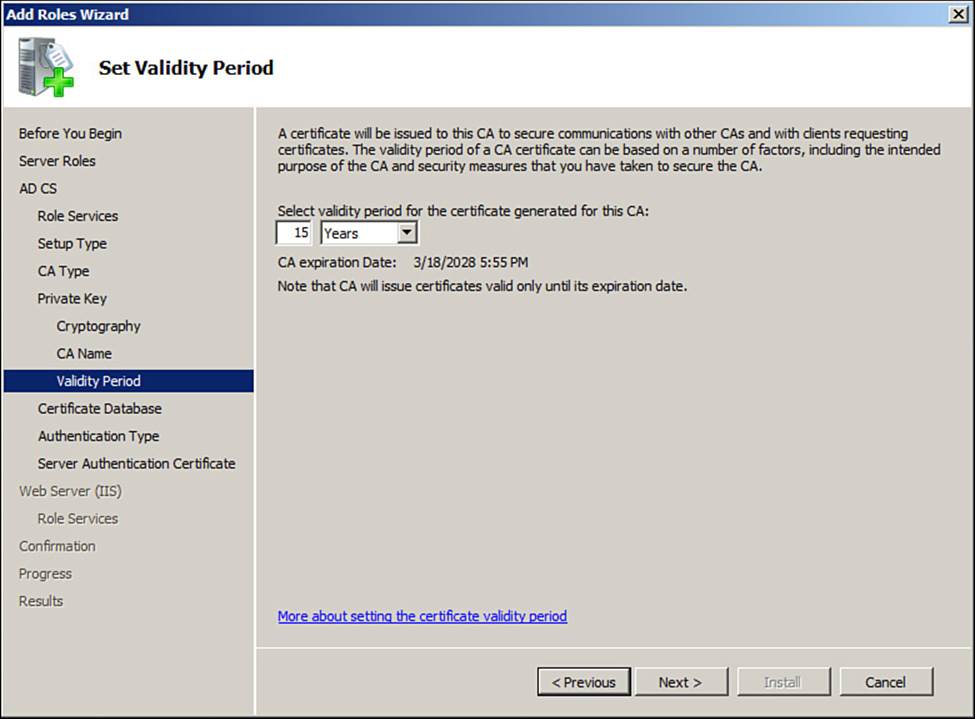
Figure B-8 Validity period.
Step 21. Click Next.
Step 22. Set the location of the CA database. The default is usually fine.
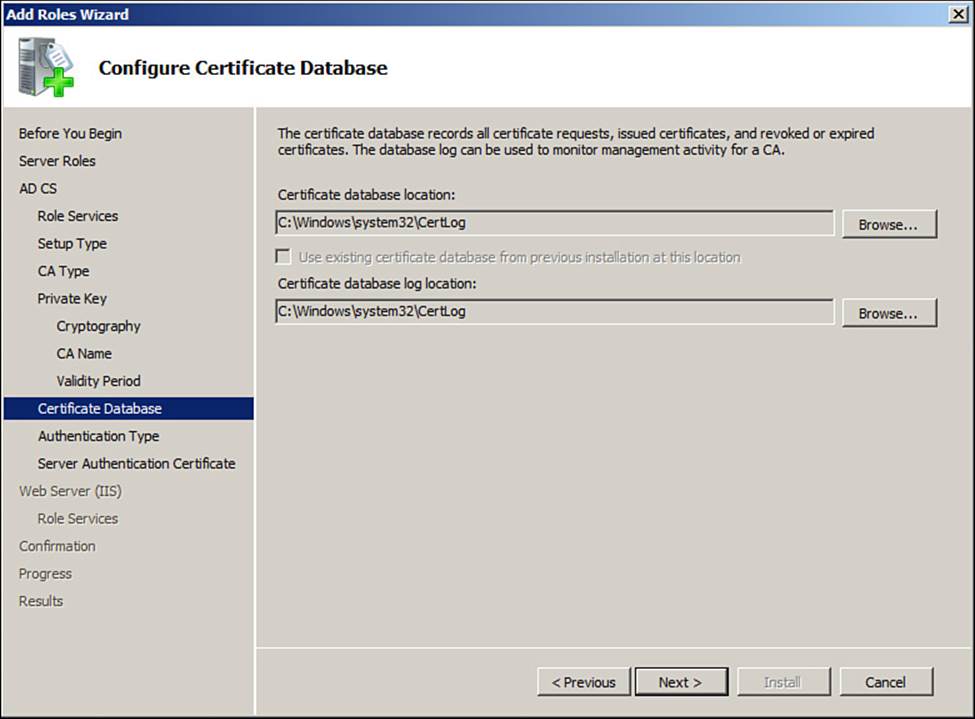
Figure B-9 Database location.
Step 23. Click Next.
Step 24. Set the authentication to use a username and password.
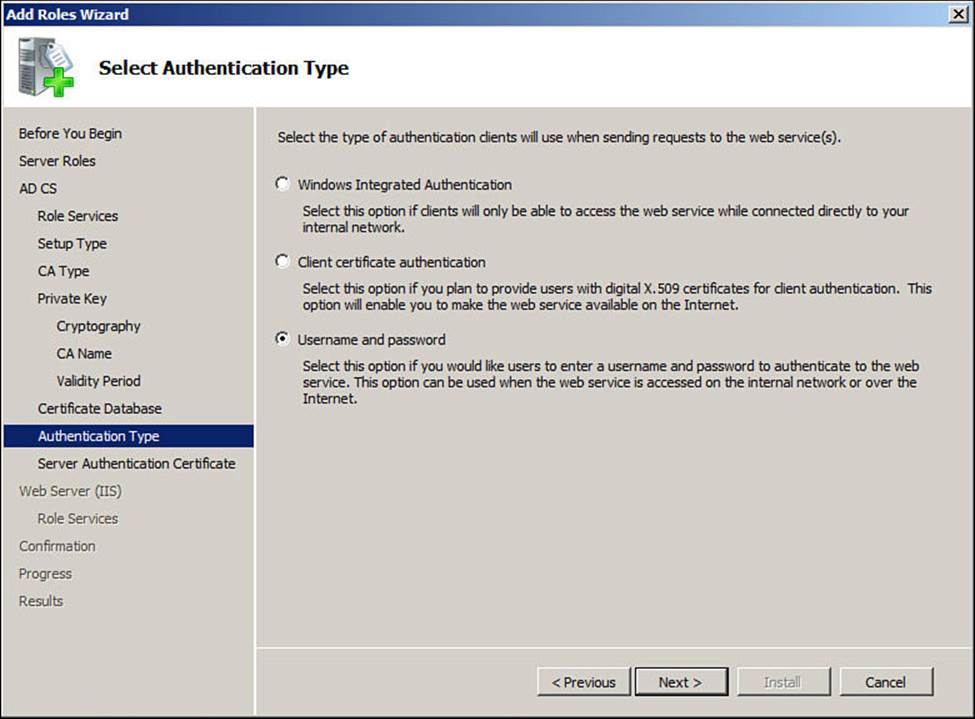
Figure B-10 Username and password.
Step 25. Click Next.
Step 26. Select the server certificate.
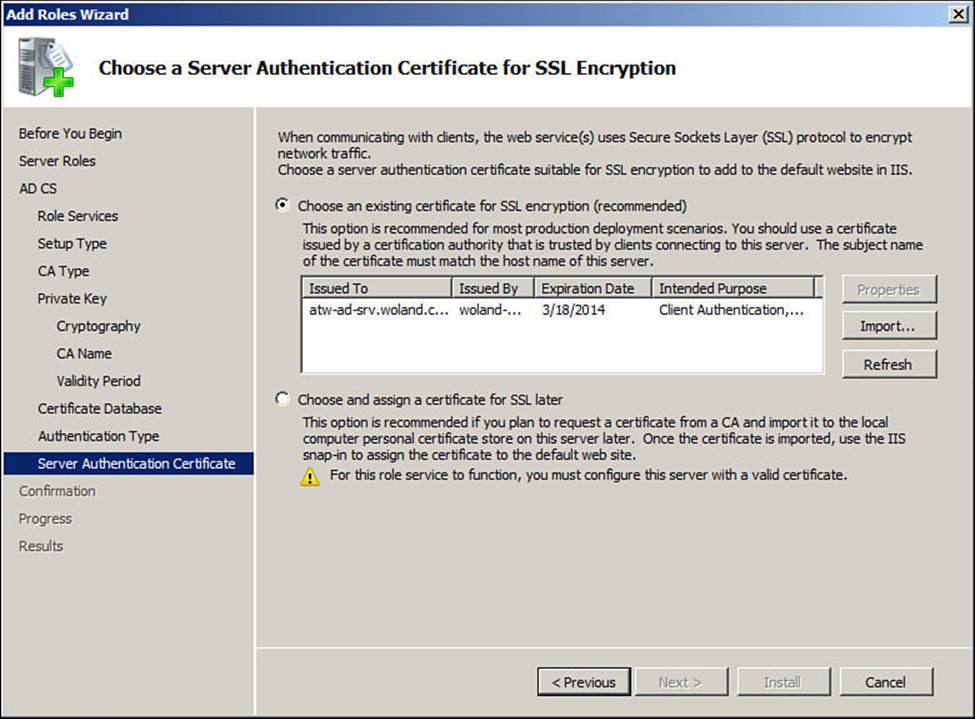
Figure B-11 Choose the server certificate.
Step 27. Click Next.
Step 28. Review your choices.
Step 29. Click Install.
Adding the Remaining Roles
Now that the CA is installed, you can go back in and add the remaining roles:
Step 1. From Server Manager, select Add Role Services for the CA.
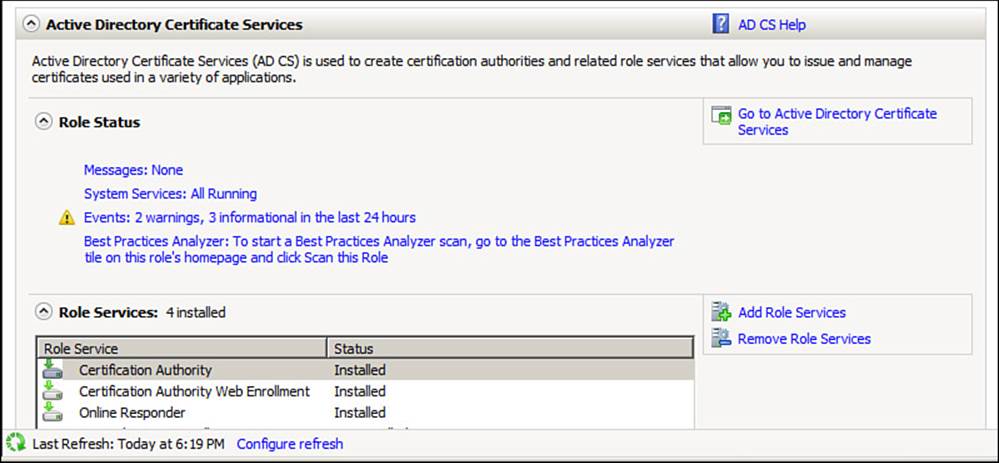
Figure B-12 Add a role service.
Step 2. Click Next.
Step 3. Select Network Device Enrollment Service, and then select Certificate Enrollment Web Service.
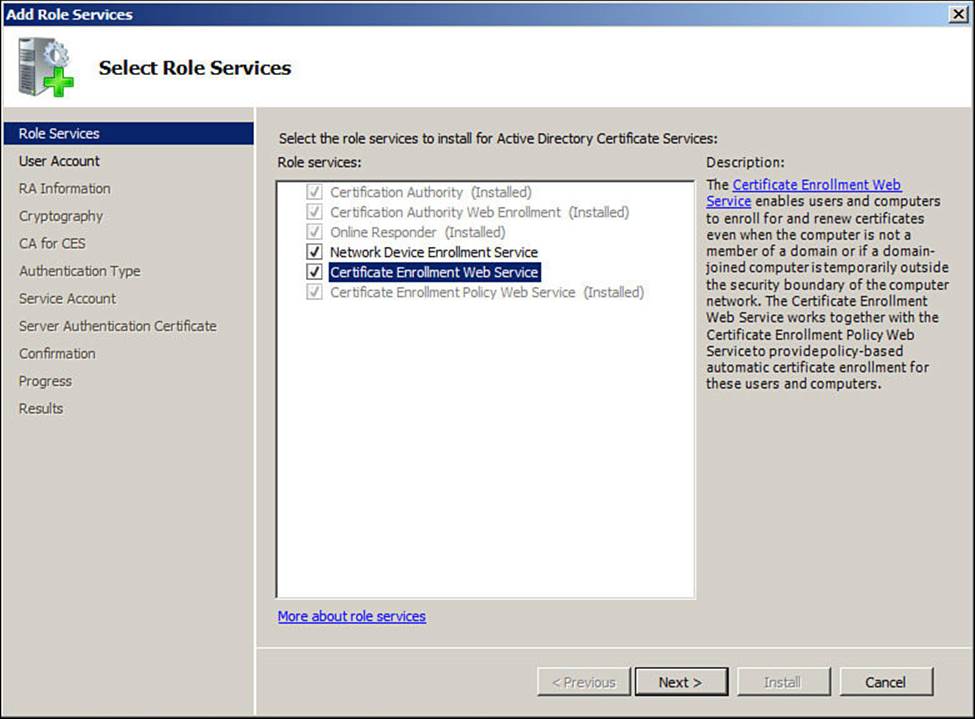
Figure B-13 Select the role services.
Step 4. Click Next.
Step 5. Specify the service account user created previously.
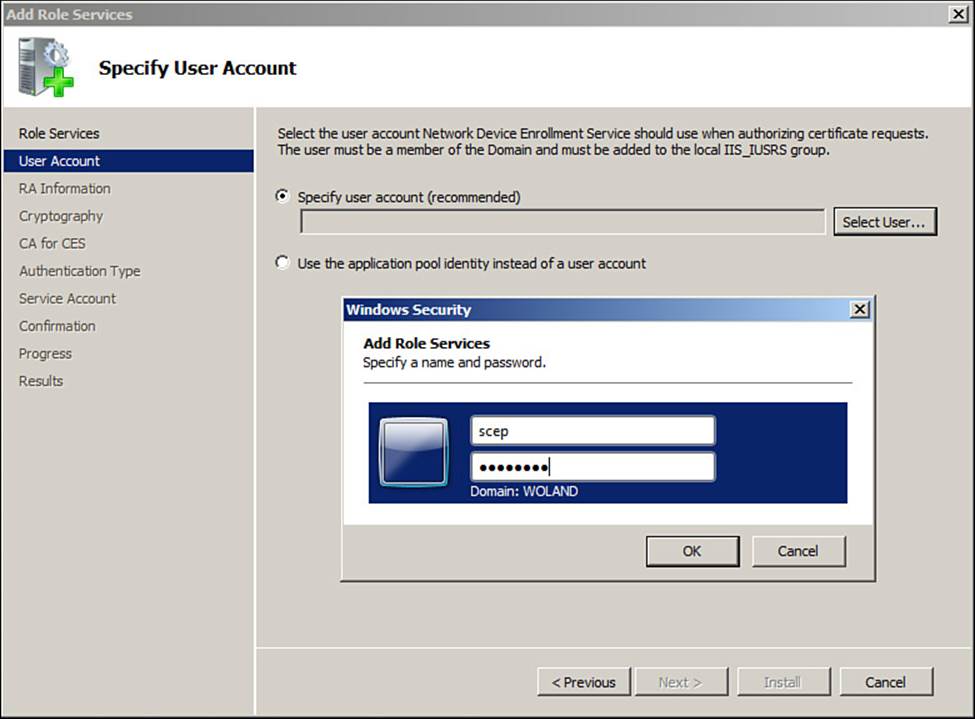
Figure B-14 The service account.
Step 6. Click Next.
Step 7. Fill in the Registration Authority Data field.
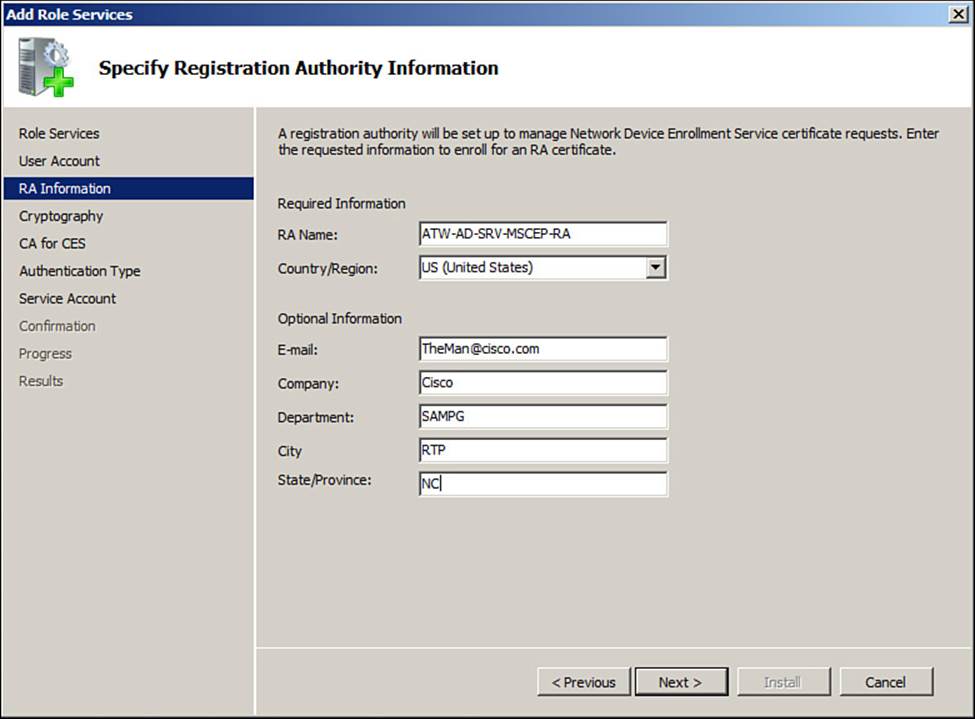
Figure B-15 RA data.
Step 8. Click Next.
Step 9. Set the RA cryptographic settings.
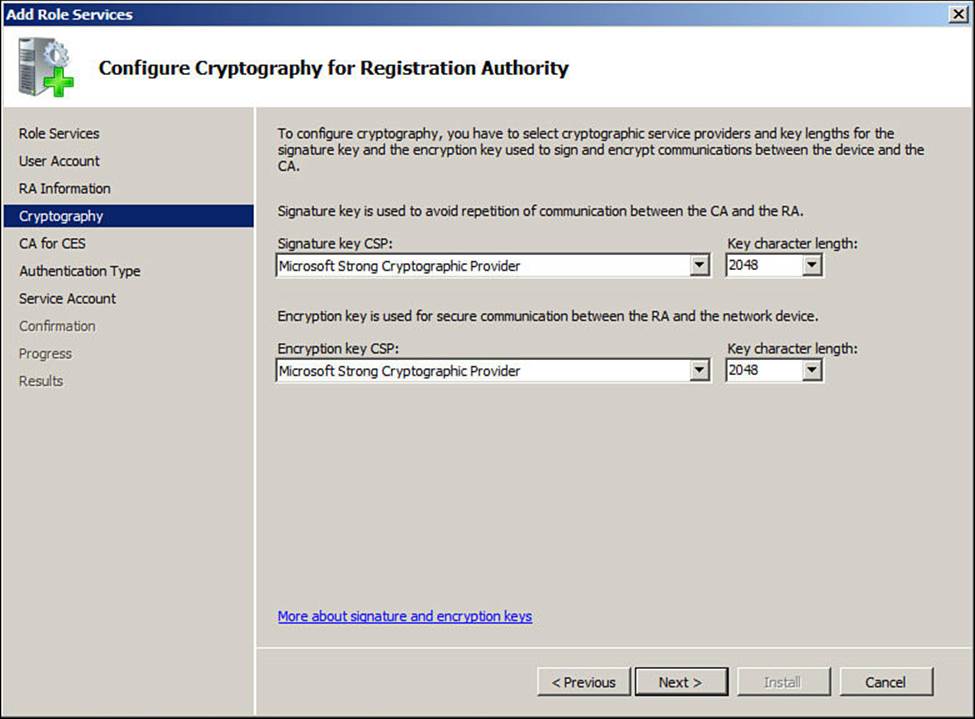
Figure B-16 RA cryptography.
Step 10. Click Next.
Step 11. Specify the CA for the Web Services.
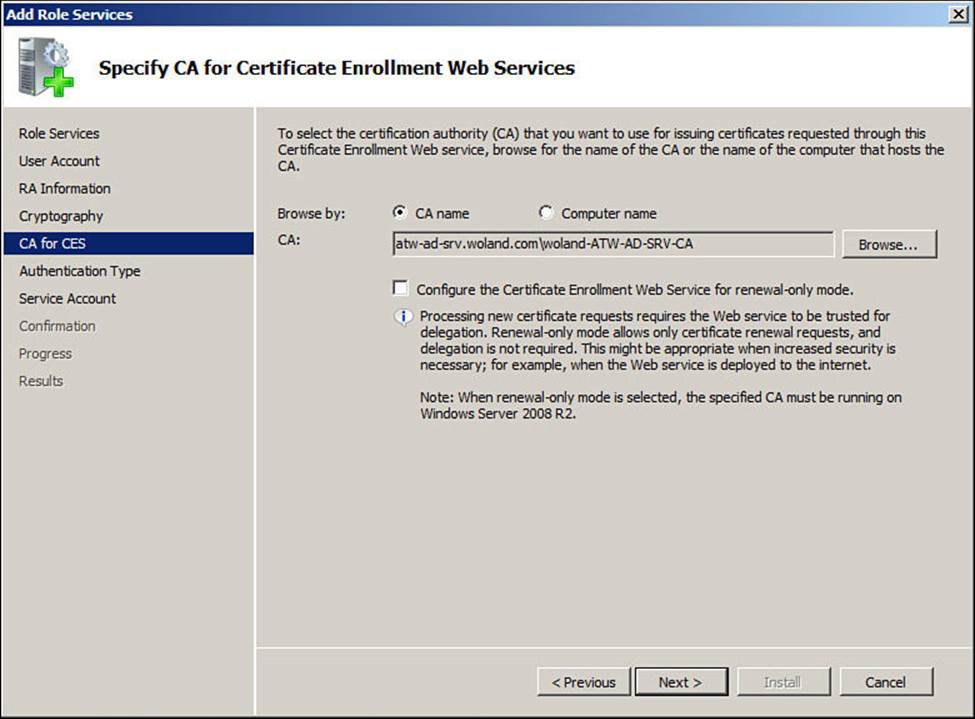
Figure B-17 Web Services CA.
Step 12. Click Next.
Step 13. Set the username and password as Authentication Type.
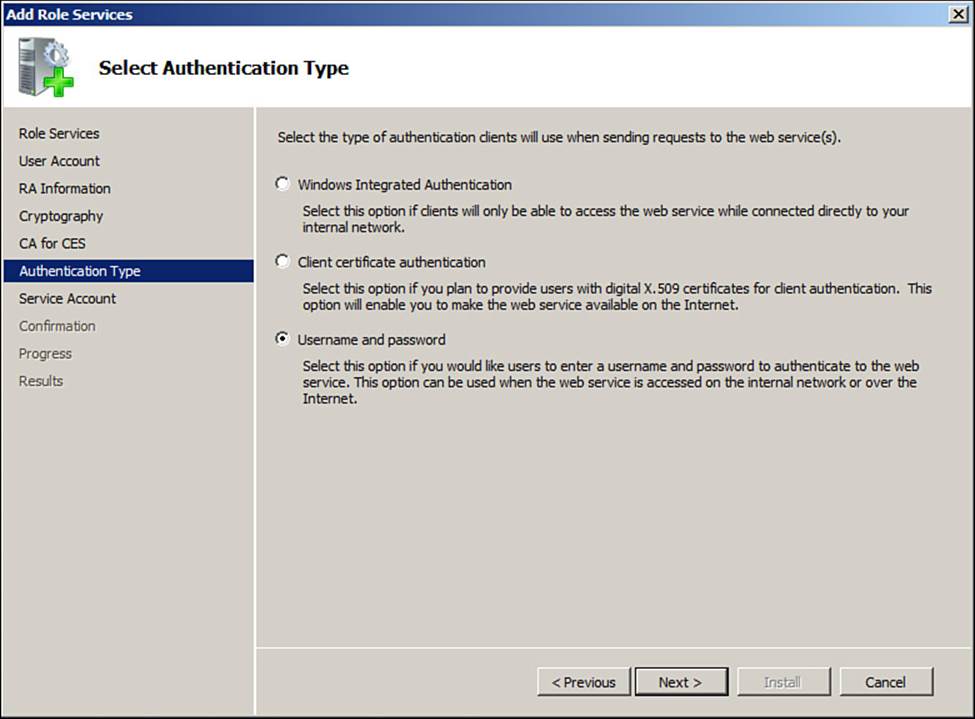
Figure B-18 Authentication type.
Step 14. Click Next.
Step 15. Specify the service account user again.
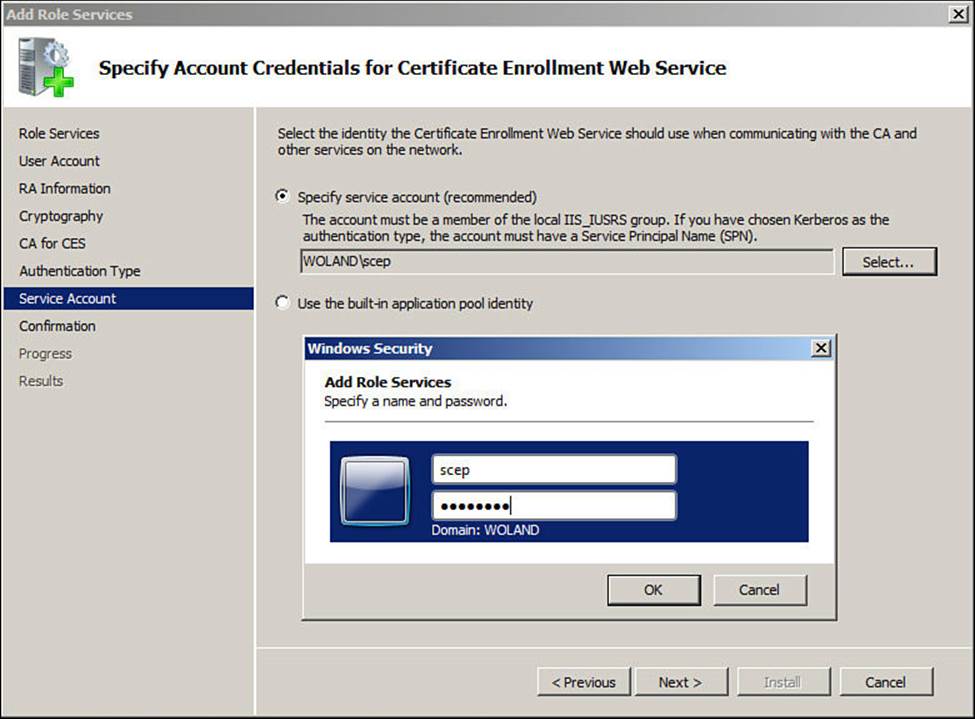
Figure B-19 The service account.
Step 16. Click Install.
Configuring the Certificate Template
A certificate template is used to define what fields and usages a certificate will have. The best certificate to base a BYOD certificate on is the user certificate. It will provide an identity certificate used for the end-entity.
Step 1. Navigate to Server Manager > Roles > AD Certificate Authority > Certificate Templates.
Step 2. Highlight the certificate template named User, and select Duplicate.
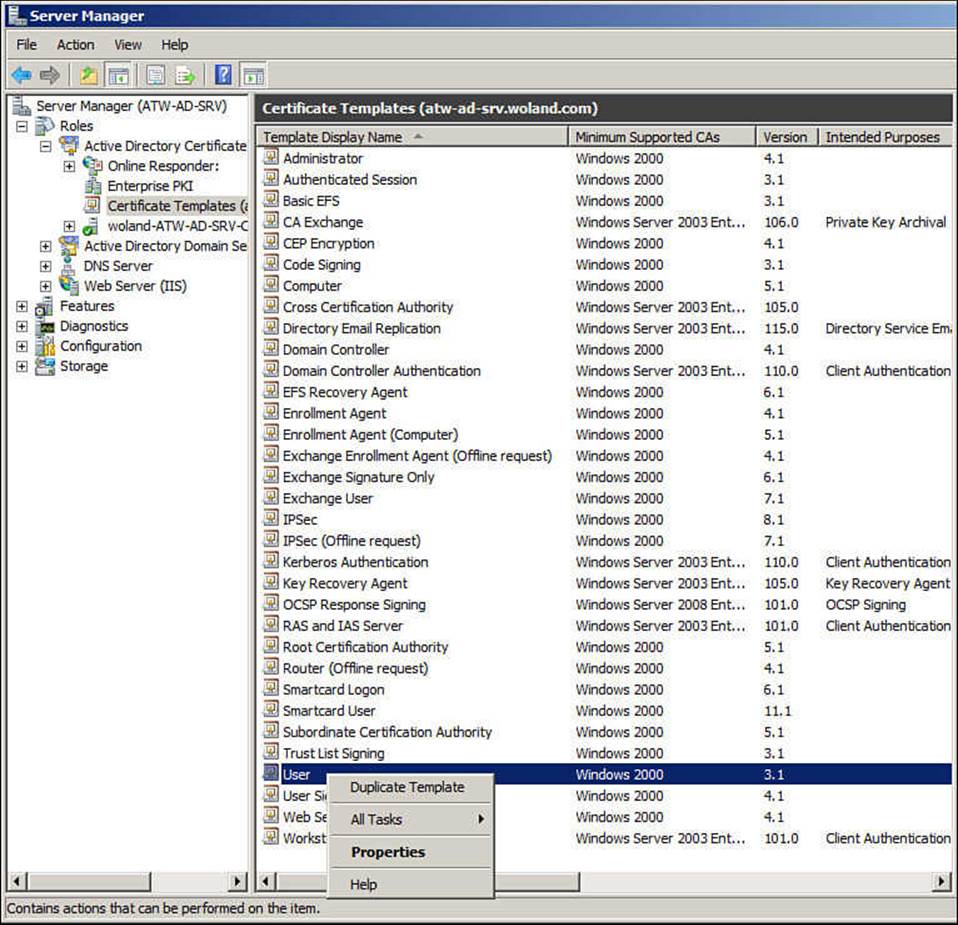
Figure B-20 Duplicate the user template.
Step 3. Click Next.
Step 4. Select the Template Version. Either will work; the sample screenshots are from a 2008 template version.
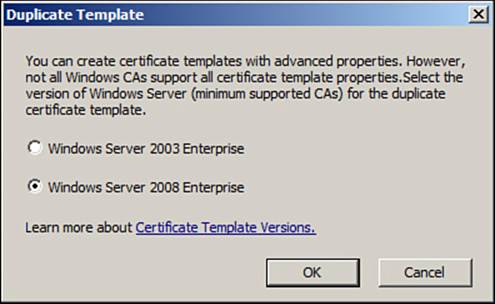
Figure B-21 Template version.
Step 5. Click OK.
Step 6. Name the certificate template, and uncheck the Publish in Active Directory check box. This is an important check box, so be sure it is not checked to avoid storage issues.
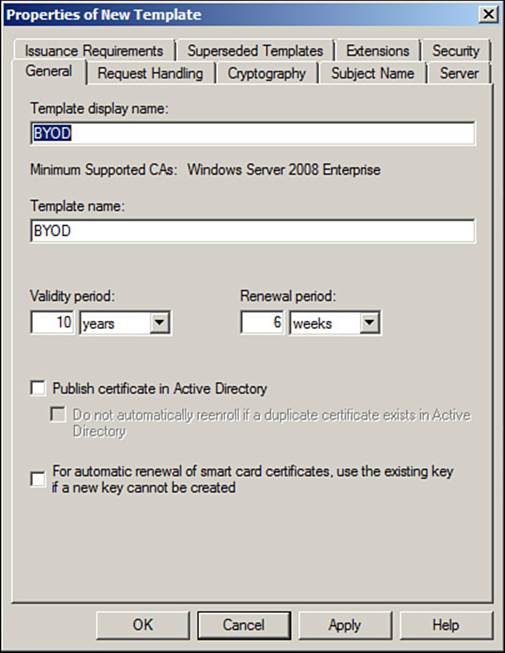
Figure B-22 General tab.
Step 7. Click the Request Handling tab:
Purpose—From the drop-down list, select Signature and Encryption so the certificate will be used for signing and encrypting.
Uncheck the Allow Private Key to Be Exported if you want; this marks it as non-exportable.
SCEP is an automated process, so be sure the Enroll Subject Without Requiring Any User Input radio button is selected.
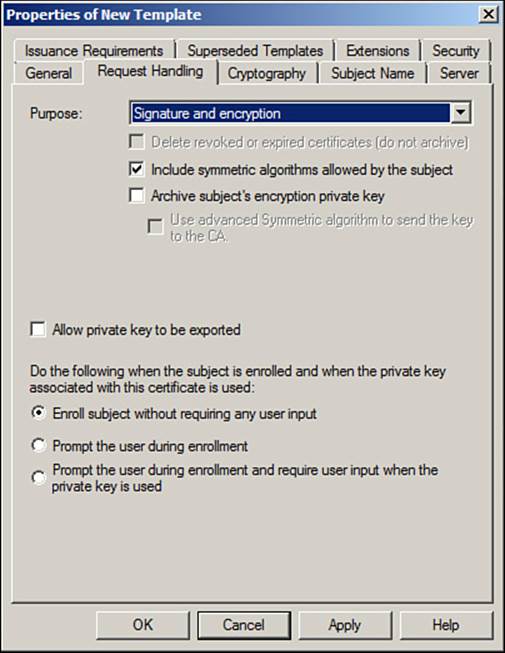
Figure B-23 Request Handling tab.
Step 8. Click the Subject Name tab.
Step 9. The BYOD process is pre-building the Certificate Signing Request, so ensure that the Supply in the Request option is selected.
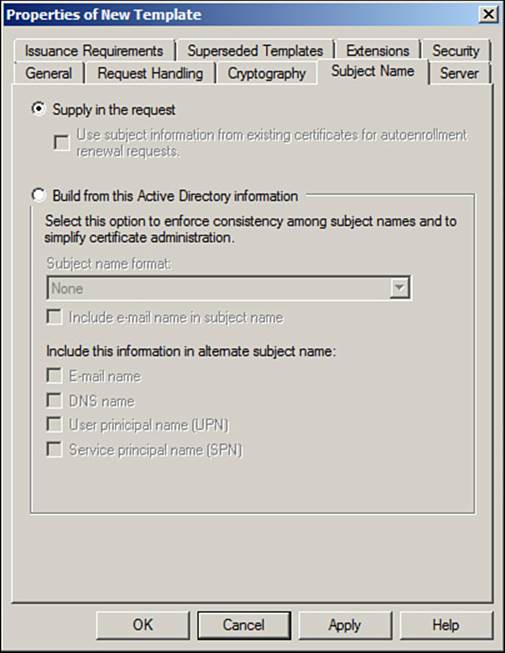
Figure B-24 Subject Name tab.
Step 10. Click the Extensions tab.
Step 11. Click on Application Policies, ensure that client authentication is listed.
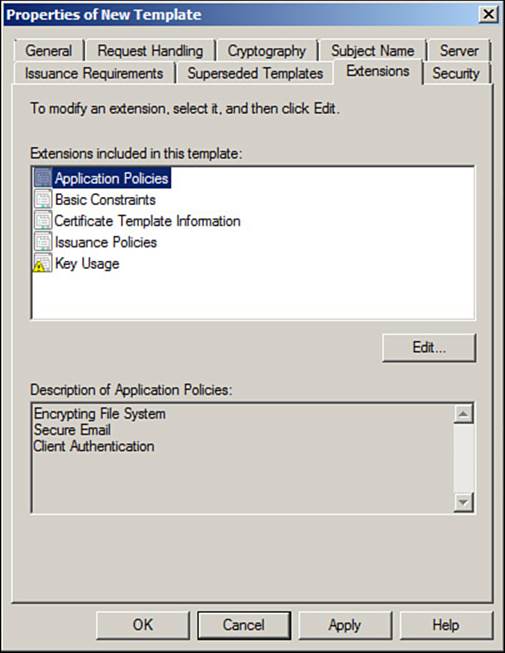
Figure B-25 Application Policies.
Step 12. Click Issuance Policies.
Step 13. Click Edit, and then click Add.
Step 14. Select All Issuance Policies. This is a critical step to ensure the certificate is issued to the endpoint.
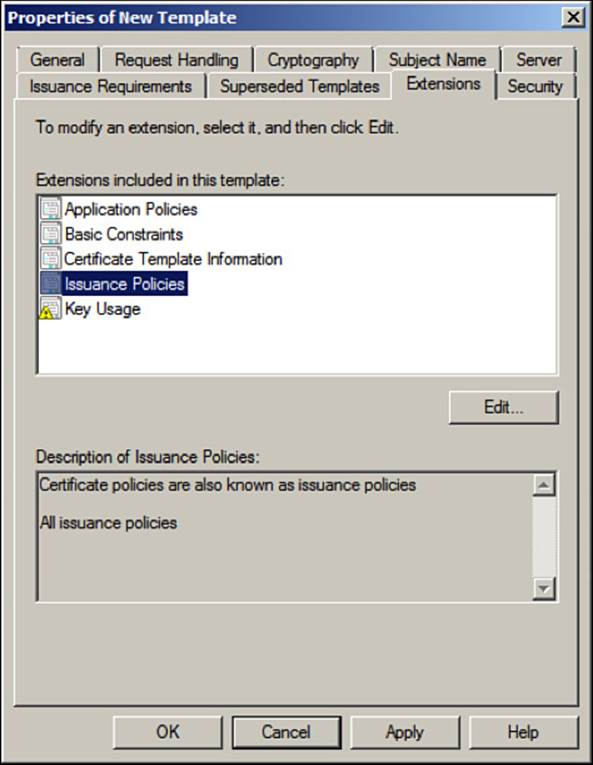
Figure B-26 Issuance policies.
Step 15. Click the Security tab.
Step 16. Add the service account user to have full control.
Step 17. Click OK to save the template.
Publishing the Certificate Template
The template is created, but we have to choose it as one to be issued:
Step 1. Select Server Manager > Roles > AD Certificate Authority > <your CA> > Certificate Templates.
Step 2. Right-click in the window.
Step 3. Select New > Certificate Template to Issue.
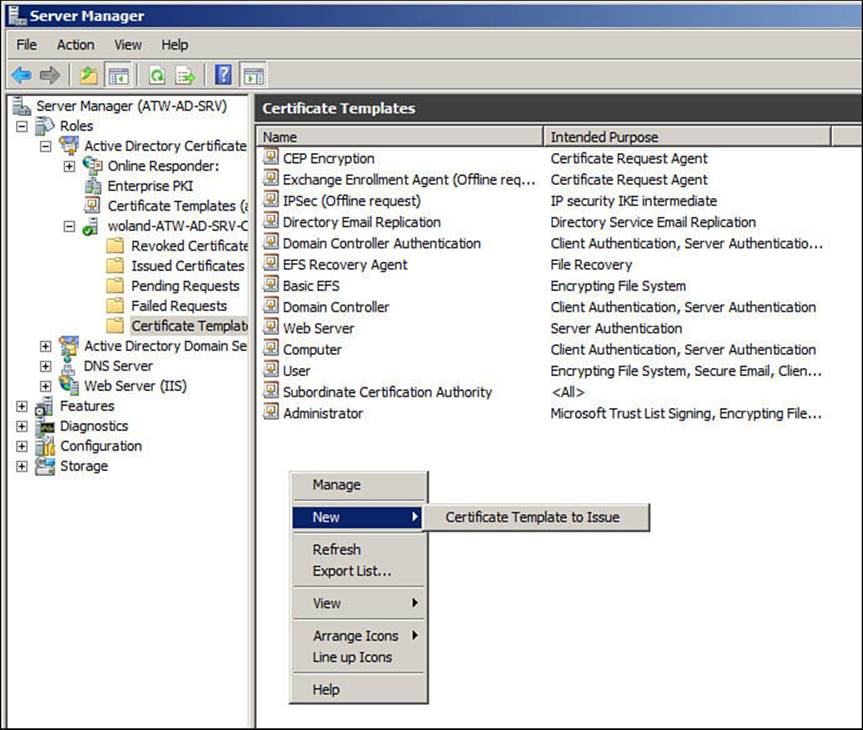
Figure B-27 Certificate template to issue.
Step 4. Choose your new certificate template.
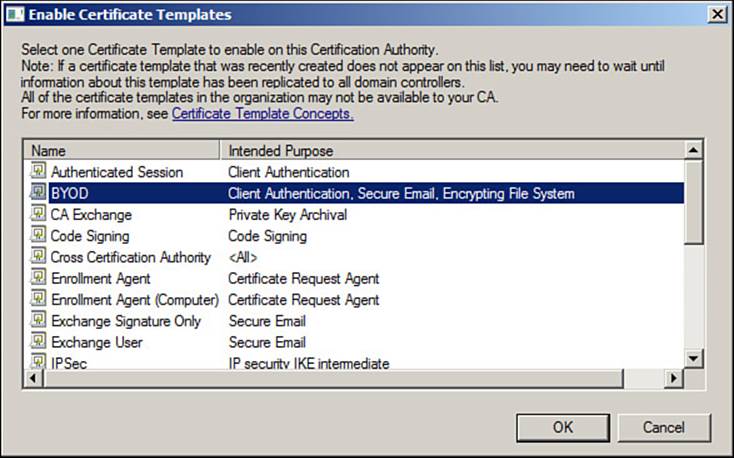
Figure B-28 BYOD certificate template.
Editing the Registry
The service account user must have full control of the MSCEP registry key. Do the following:
Step 1. Open the Regedit application.
Step 2. Select the MSCEP registry key from HKEY_LOCAL_MACHINE\Software\Microsoft\Cryptography\MSCEP.
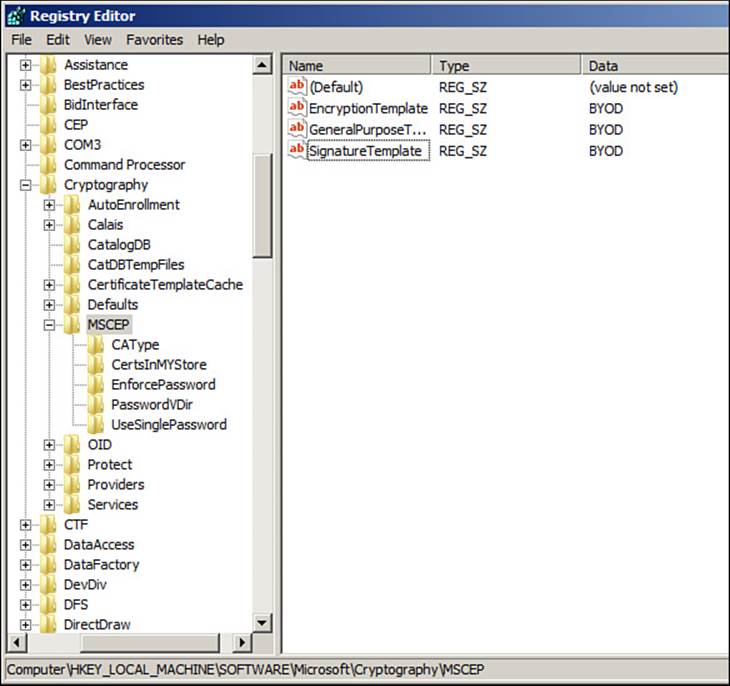
Figure B-29 Regedit.
Step 3. Right-click MSCEP > Permissions.
Step 4. Add the service account, and give it full control.
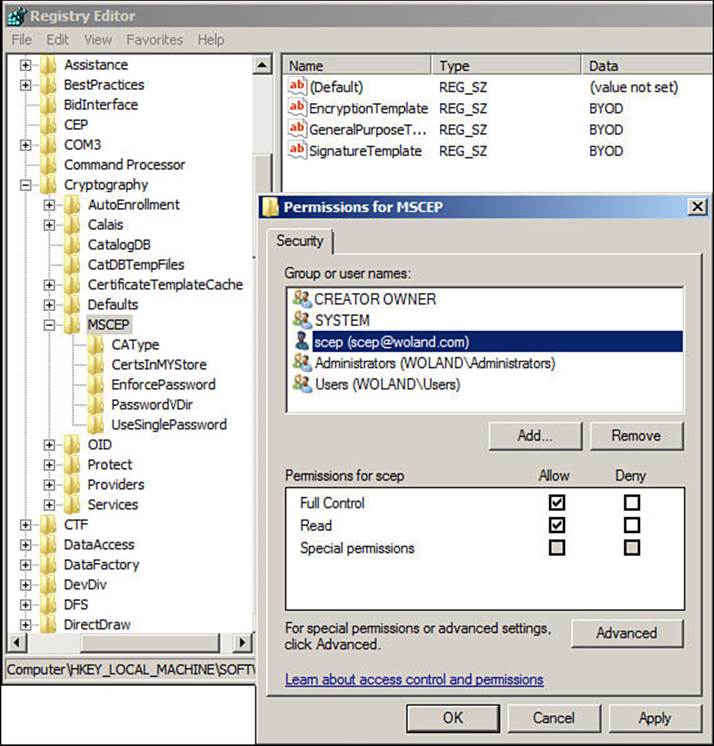
Figure B-30 Giving full control to the service account.
The default certificate template for SCEP to issue is an IPSec template. You must change this to use the new user template:
Step 1. From HKLM > Software > Microsoft > Cryptography > MSCEP, change the three Registry values to be the name of your newly created template, as shown in Figure B-29.
While in Regedit, you must disable the UseSinglePassword setting:
Step 1. From HKLM > Software > Microsoft > Cryptography > MSCEP, select the UseSinglePassword key.
Step 2. Change the value to 0.
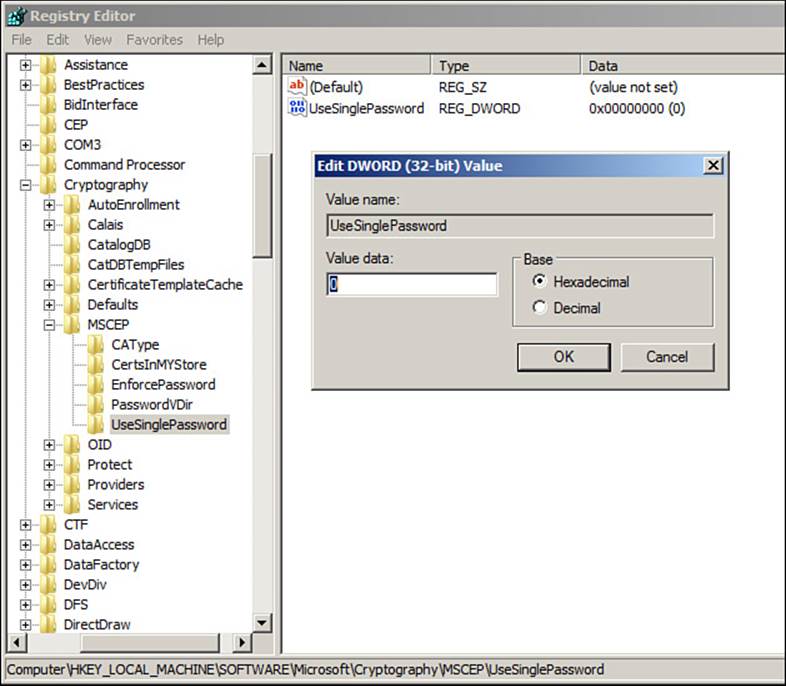
Figure B-31 The UseSinglePassword setting.
Step 3. Select the EnforcePassword key.
Step 4. Change the value to 0.
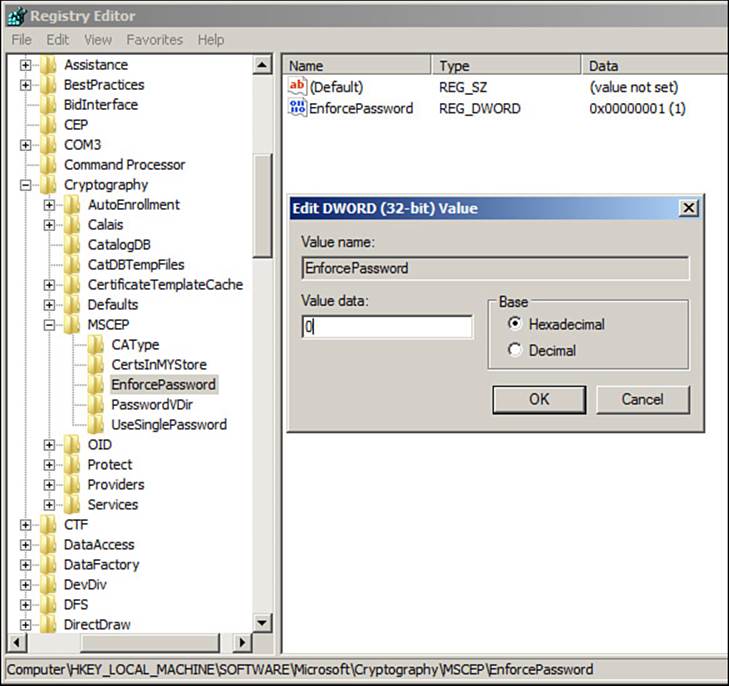
Figure B-32 The EnforcePassword setting.
You are finished! Reboot the server.
Useful Links
Microsoft Technet Article, “Certificate Enrollment Web Services in Active Directory Certificate Services,” http://social.technet.microsoft.com/wiki/contents/articles/7734.certificate-enrollment-web-services-in-active-directory-certificate-services.aspx
Microsoft Technet Article, “AD CS: Deploying Network Device Enrollment Services,” http://technet.microsoft.com/en-us/library/ff955646%28v=ws.10%29.aspx.
All materials on the site are licensed Creative Commons Attribution-Sharealike 3.0 Unported CC BY-SA 3.0 & GNU Free Documentation License (GFDL)
If you are the copyright holder of any material contained on our site and intend to remove it, please contact our site administrator for approval.
© 2016-2026 All site design rights belong to S.Y.A.