Java eLearning Kit For Dummies (2014)
Chapter 10. Accessing Data Sets Using Arrays and Collections
· Using arrays makes it possible to create lists of items that you want to process.
· Most developers view two-dimensional arrays as a sort of data table.
· Java allows you to create arrays with any number of dimensions so that you can express that data in a natural (intuitive or real world) way.
· Sometimes an array isn’t the right answer, so Java also provides array-like structures that have other qualities that make them perfect for storing data in specific ways.
· Even though arrays and collections store lists of data, you use collections to manipulate data in the same way that a database does.
· When creating collections and other complex types, you can use annotations to make the purpose of the collection or type clearer without affecting application execution.

1. What is the fastest, most efficient way to access members of an array?
Most developers rely on the for-each loop to process array data quickly, as explained on page 289
2. Are two-dimensional arrays really like tables?
Yes, you’ll actually interact with two-dimensional arrays using what amounts to row and column indexes, as described on page 298
3. Why would I want to use multidimensional arrays?
You use a multidimensional array to interact with complex data, such as information that requires height, width, and depth, as shown on page 300
4. How can I create an array-like structure that works like a stack of pancakes (where the last item on is the first item off)?
Java provides the stack structure to ensure that items are removed in a specific Last In, First Out (LIFO) order, and you can examine such structures on page 310
5. What if I want to treat data like a line at the bank, where the first item in is also the first item out?
Java provides the queue structure to handle situations where you want to react to data in a First In, First Out (FIFO) order, as demonstrated on page 314
6. Does Java provide the means to handle situations where I’m going to need to take items off one end of a list or another depending on the circumstance?
Yes, Java also provides the double-ended queue (deque, which is pronounced like the word deck), as shown on page 318
7. Is it possible to interact with Java data lists in the same manner that a database would?
Although databases do provide extremely complex data-handling capabilities, Java collections do provide a smart method of interacting with data that’s akin to a database, as described on page 322
8. Can I document the reason for using a collection or a custom type?
Yes, Java 8 provides a fully functional annotation system that helps you create better code documentation for all sorts of code, including collections and user-defined types, as described on page 331
Just about everyone makes lists. You create a grocery list before going to the store and create lists of tasks you must perform at work. Lists are a natural way of keeping track of data of various sorts. Java provides lists in the form of arrays. The easiest way to think of arrays is as electronic lists that help you manage the data in your application.
LINGO
An array is a kind of electronic list. It’s a grouping of individual data values — normally of the same type — that you treat as a single entity. You use an array as a sort of container for managing a list of data.
Not every list you create has just one dimension. For example, you might end up creating a table that not only tells what to do, but when and where to do it. Tables are two-dimensional lists — they’re composed of rows and columns. People naturally create tables when they need to track data that’s too complex for a simple list. Likewise, Java provides you with access to two-dimensional arrays that work much like tables do.
LINGO
A stack is a special type of array that forces you to remove the last item you added to the list first. This is a Last In, First Out (LIFO) structure that acts much like a stack of pancakes, where you take the topmost pancake from the stack first when you’re having breakfast.
Sometimes you need even more than two dimensions. For example, when you try to decide how to manage stock in a warehouse, you use a three-dimensional list to do it — height, width, and depth. Woodworkers commonly use three-dimensional lists, too. In fact, humans use multidimensional lists all the time without really thinking about it. Java can meet your needs in this regard as well.
LINGO
A queue is a special type of array that forces you to remove the first item you added to the list first. This is a First In, First Out (FIFO) structure that acts much like a line at the bank. The first person in line is the first person served.
Arrays could meet every listing need. However, some forms of specialty lists are so common that Java provides special objects for them. For example, when you’re making pancakes, you often create a stack of them. When you finish the stack, you take the last item you put on it first and then move down toward the first item. Likewise, we’re all familiar with lines called queues at the bank and shopping center, where the first person in line is also the first person to leave it. Java provides an assortment of special list types that are really offshoots of the array but provide special logic for managing the list with greater ease: stack, queue, and deque (double-ended queue).
LINGO
A deque is a special kind of array that lets you add or remove items from either end of the list. However, you can’t access items in the middle of the list. A deque can act as either a stack or a queue depending on the need at the time. It lets a developer create a list where items that a program can’t act on now are put back into the list for later processing.
Finally, this chapter discusses a truly specialized form of array with intelligence called a map. Most people think about this sort of object as a collection. When you have a DVD collection, you think about more than a simple stack of disks. The content of each DVD takes on special importance, and you often categorize DVDs by type and list them in order of title. It’s the use of these database-like qualities that changes an array from a simple list to a type of collection called a map. The following sections describe all these forms of Java lists. In addition, you discover a new method of documentation for complex types called annotations that you’ll find very helpful as your applications become more complex.
LINGO
A collection is a list of complex items that you manage in the same way that you would a database. Java provides the Map object for this purpose. The list isn’t structured in a concrete fashion — you can reorder it as needed and process it in a more comprehensive way than other Java types.
Performing Basic Array Tasks
GO ONLINE
This chapter goes through a lot of information very quickly. Fortunately, you can find a number of sources of additional help online. For example, you can find an excellent tutorial about arrays athttp://docs.oracle.com/javase/tutorial/java/nutsandbolts/arrays.html. Another interesting tutorial appears at http://www.learn-java-tutorial.com/Java-Arrays.cfm. Make use of as many resources as you can while you begin your Java journey to ensure you get up to speed as quickly as possible.
An array is simply a list. It can be a list of anything — any primitive or object type. In most cases, an array is a list of like items. For example, if you create an int array, then all the items in that list are int values. The following sections describe how to create, initialize, iterate (examine each value), and otherwise manipulate arrays.
Defining an array
Always think of an array as a list of items. With this in mind, when you want to define an array, you begin with the type of the item you want to create. For example, if you want to create an array of integer values, you start with the int primitive type in most cases. The type is followed by a pair of square brackets ([]), which is then followed by the array name. You’ve seen an array defined for every application in the book. The main() method declaration always includes one, as shown here:
public static void main (String[] args)
In this case, args is an array of type String. It contains the list of string values provided at the command line. You’ll see additional array examples as the chapter progresses.
Initializing an array
Before you can use an array, you must initialize it. Initializing an array is a two-step process:
1. Instantiate the array so that you have an array object to work with.
2. Provide a value for each element in the array.
LINGO
An array element is an individually accessible item in the list. Every element is a single item of the same type as the array. For example, when you define an int[] array, each element within the array is of type int.
The elements in an array are accessed using a unique number. The numbers begin at 0 and continue through one less than the total number of elements. For example, if you have an array with ten elements, they’re numbered from 0 through 9. To access a particular element, you use the array’s name, followed by the number enclosed in square brackets. The following code shows a typical array definition and initialization:
// Define an array of integer values.
int[] MyArray;
// Instantiate MyArray.
MyArray = new int[5];
// Define the individual array values.
MyArray[0] = 0;
MyArray[1] = 1;
MyArray[2] = 2;
MyArray[3] = 3;
MyArray[4] = 4;
This code creates an int[] array named MyArray. It instantiates this array to hold five entries by calling new int[5]. The code then initializes each of the individual array values by accessing the individual elements, 0 through 4.
Using the for-each loop with arrays
Defining an array and filling it with data are two essential parts of working with arrays — the parts that you perform every time you use an array. However, when you have an array filled with data, you normally want to do something with that data. In the following exercise, you define an array, fill it with data, and then use a for-each loop to display the values in each array element.
Files needed: SimpleArray.java
1. Open the editor or IDE that you’ve chosen to use for this book.
2. Type the following code into the editor screen.
public class SimpleArray
{
public static void main(String[] args)
{
// Define an array of integer values.
int[] MyArray;
// Instantiate MyArray.
MyArray = new int[5];
// Define the individual array values.
MyArray[0] = 0;
MyArray[1] = 1;
MyArray[2] = 2;
MyArray[3] = 3;
MyArray[4] = 4;
// Use a for-each loop to display the values.
for (int ThisValue : MyArray)
System.out.println(ThisValue);
}
}
The application begins by creating an int[] array named MyArray. It instantiates the array and then fills it with data. The for-each loop accesses each array element individually, fills the int variable — ThisValue — with that element’s content, and then uses the System.out.println()method to display the information onscreen.
3. Save the file to disk using the filename SimpleArray.java.
EXTRA INFO
You can use a byte, short, int, or char variable to access array elements. However, it’s illegal to use a long variable to access an array element, and the compiler will display an error if you try.
4. In your command prompt, type javac SimpleArray.java and press Enter.
The compiler compiles your application and creates a .class file from it.
5. Type java SimpleArray and press Enter.
You see the expected output shown in Figure 10-1. Of course, you can easily fill the array elements with any int value.
 Create a ten element version of the SimpleArray application. Try filling the array elements with different types of data. How does the compiler react to the incorrect input? Finish this practice by filling the array elements with correct int values and then running it so that you can see the number of elements can change to whatever you need.
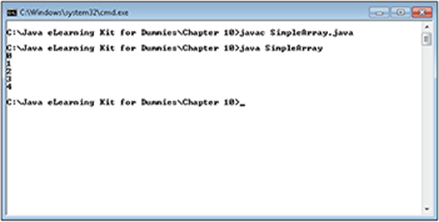
Figure 10-1:
Determining the array characteristics
Arrays have specific characteristics, just as any other variable in Java does. In the following example, you perform some simple queries on an array and its associated elements. (In this context, a query is simply a question — you use methods to ask the array questions.)
Files needed: ArrayProperties.java
1. Open the editor or IDE that you’ve chosen to use for this book.
2. Type the following code into the editor screen.
// Import the required API classes.
import java.lang.Integer;
public class ArrayProperties
{
public static void main(String[] args)
{
// Define and initialize an array of integer
// values.
int[] MyArray;
MyArray = new int[5];
MyArray[0] = 5;
MyArray[1] = 10;
MyArray[2] = 15;
MyArray[3] = 20;
MyArray[4] = 25;
// Display the array properties.
System.out.println("Length: " + MyArray.length);
System.out.println("Class: " +
MyArray.getClass().getCanonicalName());
// Display the element properties.
System.out.println("float Value: " +
((Integer)MyArray[4]).floatValue());
System.out.println("Hexadecimal Value: "
+ Integer.toHexString(MyArray[4]));
}
}
The application begins by creating an int[] array named MyArray and initializing it. A basic array provides access to its length through the length property. You can use the length property to iterate an array using a standard for loop. You can use the getClass().getCanonicalName()method to obtain the kind of array from the instantiated object. The getClass() method actually returns an object with a number of properties and methods, but nothing other than the getCanonicalName() method returns a value by default.
After you access an array element using its index, you can perform the same sorts of tasks with it as you would the type in normal circumstances. For example, just as you can convert a primitive int type to a float type by using the floatValue() method, you can perform the same task by using an int array element. Likewise, you can coerce an element to box it as an object (see the “Automatic boxing and unboxing” section of Chapter 3 for a discussion of boxing) and then use the methods of the object type to work with it (Integer in this case).
3. Save the file to disk using the filename ArrayProperties.java.
4. In your command prompt, type javac ArrayProperties.java and press Enter.
The compiler compiles your application and creates a .class file from it.
5. Type java ArrayProperties and press Enter.
You see the expected output shown in Figure 10-2. Notice that the canonical name tells you the array type precisely.
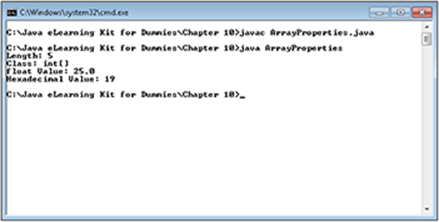
Figure 10-2:
 As with any other object type, you can’t compare two arrays by using the equality (==) operator. You must instead use the equals() method. For example, if you want to check whether Array1 is equal to Array2, you must use Array1.equals(Array2).
Changing the array size
LINGO
Any variable that can’t change its value once you’ve instantiated and initialized it is considered immutable. For example, all constants are immutable because the value of a constant can never change. Likewise, arrays and many other objects are immutable, making it necessary to create a new instance of the object if you want to change certain characteristics. Arrays are containers, and the contents of that container — the elements — are mutable (changeable) as long as the type allows it.
After you create an array in Java, the size is immutable, which means that it can’t change. However, people need to change the size of things all the time. Sometimes you simply don’t know how large something should be at the outset, and you don’t want to create an array that wastes resources. Unfortunately, Java doesn’t provide a simple method of resizing arrays. Most people create their own resize() method to make resizing arrays easier. (If you absolutely must have arrays that can change size, then you use the ArrayList object rather than a standard array, as described in the later “Developing variable-length arrays of arrays” section.)
One of the common tasks that Java developers must perform is resizing arrays. It’s best if you create a separate method to perform the task. In the following example, you create a specialized method for resizing arrays. This is your first piece of truly generic code, and you can use it in any application you create.
Files needed: ResizeArray.java
1. Open the editor or IDE that you’ve chosen to use for this book.
2. Type the following code into the editor screen.
// Import the required API classes.
import java.lang.reflect.Array;
public class ResizeArray
{
public static void main(String[] args)
{
// Create and initialize an array.
int[] MyArray = {0, 1, 2, 3, 4};
// Display the original values and size.
System.out.println("Original Size: " + MyArray.length);
System.out.print("Original Content: ");
for (int Value : MyArray)
System.out.print(Value + " ");
// Resize the array.
MyArray = (int[])resize(MyArray, MyArray.length + 2);
// Add two more values to the array.
MyArray[5] = 5;
MyArray[6] = 6;
// Display the new values and size.
System.out.println("\n\nNew Size: " + MyArray.length);
System.out.print("New Content: ");
for (int Value : MyArray)
System.out.print(Value + " ");
}
public static Object resize(Object OldArray, int NewSize)
{
// Obtain the original size of the array.
int OriginalSize = Array.getLength(OldArray);
// Obtain the type of the original array.
Class ArrayType = OldArray.getClass().getComponentType();
// Create a new array of the same type.
Object NewArray = Array.newInstance(ArrayType, NewSize);
// Determine which array size is larger.
int CopyLength = Math.min(OriginalSize, NewSize);
// Make sure the user didn't pass in a zero
// array size.
if (CopyLength > 0)
// Copy the contents of the old array to the
// new array.
System.arraycopy(OldArray, 0, NewArray, 0, CopyLength);
// Return the new array.
return NewArray;
}
}
This version of the application uses a different technique for creating an initializing MyArray. In this case, the code performs the task in one step. Notice that the values appear within curly braces ({}), which always defines a block in Java. The individual values in the block are separated by commas. You can use this technique for any array.
The code begins by displaying the original size and values contained in MyArray. (The new technique used to create MyArray emphasizes one reason that you might need to obtain the array length, even when using for-each loops to process array content.)
The main() method finishes by calling resize(). It then displays the new array length and element values.
LINGO
Reflection is a programming technique that obtains the true content of an object, rather than relying on the base Object type. In many situations, it’s necessary to use the Object type to create generic methods for processing data. However, the Object type has severe limits, which is where using reflection to determine the true nature of the object comes in handy.
The resize() method begins by obtaining the original array length. You might wonder why the code doesn’t use the length property directly. The resize() method receives the old array as an Object type, not an int[] type, so it can’t easily access the native methods and properties. The reason you must use the Object type is that you have no way of knowing precisely what sort of array the user will pass into resize() for resizing. This example uses something called reflection to obtain the information about the array. Think of reflection as sort of examining a variable in a mirror. The mirror reflects the true content of the Object, which is an int[].
The code also requires the type of the original array so it can create a new array of the same type. After the code determines the original array length and type, it uses the information to create the new array. The Array.newInstance() method creates a new array of the right type and with the new size requested by the caller.
Another potential problem with generic routines is that you can’t easily determine whether the caller has requested to make the new array larger or smaller than the original. The code uses Math.min() to determine this information and place the smaller of the two array sizes inCopyLength. When CopyLength is larger than 0, the code copies the original array content to the new array by calling System.arraycopy(). If CopyLength equals 0, then there isn’t anything to copy, and resize() returns an empty array.
3. Save the file to disk using the filename ResizeArray.java.
4. In your command prompt, type javac ResizeArray.java and press Enter.
The compiler compiles your application and creates a .class file from it.
5. Type java ResizeArray and press Enter.
The example outputs the original array information first and then the resized array information, as shown in Figure 10-3.
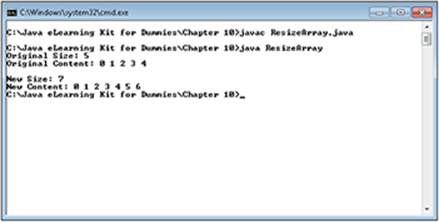
Figure 10-3:
Sorting array data
At one time (long ago) programmers had to write their own routines for sorting data in arrays — an error-prone and difficult task. Java makes it easy to sort the content of arrays by using the methods in the java.util.Arrays class. In the following example, you use one such method to sort a String[].
Files needed: SortArray.java
1. Open the editor or IDE that you’ve chosen to use for this book.
2. Type the following code into the editor screen.
// Import the required API classes.
import java.util.Arrays;
import java.lang.String;
public class SortArray
{
public static void main(String[] args)
{
// Create and initialize an array.
String[] MyArray =
{
"Yellow",
"Green",
"Blue",
"Red",
"Orange",
"Purple"
};
// Display the original content of MyArray.
System.out.println("Original MyArray Order:");
for (String Value : MyArray)
System.out.println(Value);
// Sort the array.
Arrays.sort(MyArray);
// Display the sorted content of MyArray.
System.out.println("\nSorted MyArray Order:");
for (String Value : MyArray)
System.out.println(Value);
}
}
The example begins by creating and initializing a String[], MyArray. (Using String values can make the effects of a sort a little more noticeable.) The code then displays the original, unsorted contents of the array. It then calls Arrays.sort(), which sorts the content of the array. Finally, the code outputs the sorted array content.
3. Save the file to disk using the filename SortArray.java.
4. In your command prompt, type javac SortArray.java and press Enter.
The compiler compiles your application and creates a .class file from it.
5. Type java SortArray and press Enter.
The example outputs the original array information first and then the sorted array information, as shown in Figure 10-4.
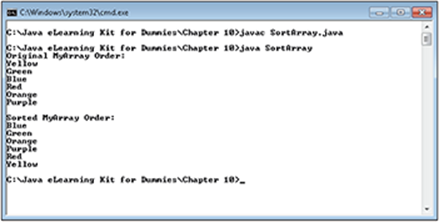
Figure 10-4:
Try changing the case of some of the String entries. For example, try changing Yellow to YELLOW and Red to red. How does the sort order change? What does this tell you about the sorting mechanism that Java uses? Perform some more changes. Try several capitalizations of the same color, such as Red, red, RED, and REd. How does Java treat each of these capitalizations?
Creating Multidimensional Arrays
The arrays that you saw earlier in this chapter all have a single dimension, which means that they’re a simple list. However, many people create lists that aren’t so simple. For example, when you create a table, you’re creating a two-dimensional list, indicated by the fact that tables use both rows and columns. Java lumps all arrays that have more than one dimension into a single category, multidimensional arrays. The following sections describe how to work with multidimensional arrays.
Defining a two-dimensional array
As previously mentioned, the easiest way to think about a two-dimensional array is as a table. However, two-dimensional arrays have many real-world representations. For example, you could use a two-dimensional array to keep track of the pieces on a chess board. A two-dimensional array could also represent something a little more abstract, such as the coordinates in a graph. No matter what you call the two dimensions, row and column or X and Y, a two-dimensional array requires two indices to access a specific element in the array.
In the following exercise, you create a two-dimensional array that contains the multiplication tables. That’s right! You can use a two-dimensional array to hold this sort of information as well. By providing a multiplicand and a multiplier, you can obtain the product contained in the two-dimensional array.
Files needed: TwoDimensions.java
1. Open the editor or IDE that you’ve chosen to use for this book.
2. Type the following code into the editor screen.
// Import the required API classes.
import java.util.Scanner;
public class TwoDimensions
{
public static void main(String[] args)
{
// Define the two-dimensional array.
int[][] MathTable = new int[10][10];
// Fill the array with data.
for (int x = 1; x <= 10; x++)
for (int y = 1; y <= 10; y++)
MathTable[x - 1][y - 1] = x * y;
// Create the scanner.
Scanner GetNumber = new Scanner(System.in);
// Obtain the multiplicand.
System.out.print("Type a number between 1 and 10: ");
int Multiplicand = GetNumber.nextInt();
// Obtain the multiplier.
System.out.print("Type a number between 1 and 10: ");
int Multiplier = GetNumber.nextInt();
// Output the result.
System.out.print("The product is: " +
MathTable[Multiplicand - 1][Multiplier - 1]);
}
}
 The example begins by creating a two-dimensional int[][] array, MathTable. Each dimension you want to create in an array requires another set of square brackets ([]). Because this is a two-dimensional array, it uses two sets of square brackets.
After the code creates the array, it fills the array with data. The values used to calculate the content of MathTable range from 1 through 10. However, remember that arrays always use a zero-based index. As a consequence, MathTable[2][3] (the second row, third column) contains 3 * 4 or a value of 12. The for loops run from 1 to 10, but the indices run from 0 through 9, so the code must subtract 1 from both x and y to create the right index values.
At this point, MathTable contains a table of values that you can use to look up information, rather than recalculate it. Many applications rely on such lookup tables when they work with complex calculations. Rather than recalculate values every time they’re needed, the application performs the task once, places the information in a table, and then looks up the information later. This technique makes your application run much faster.
To use MathTable, the application asks the user to supply two numbers. It then looks these values up in MathTable and outputs the result. Notice that the application looks up the product, but it doesn’t recalculate it.
LINGO
Lookup tables store calculated information in an easy-to-access form. Many applications rely on lookup tables to store calculated data. Calculations take time, so recalculating the same information more than once wastes resources and can cause the application to run more slowly. The more complex the calculation, the more time an application can save by using a lookup table.
3. Save the file to disk using the filename TwoDimensions.java.
4. In your command prompt, type javac TwoDimensions.java and press Enter.
The compiler compiles your application and creates a .class file from it.
5. Type java TwoDimensions and press Enter.
The application asks you to type a number between 1 and 10.
6. Type 2 and press Enter.
The application asks you to type another number between 1 and 10.
7. Type 8 and press Enter.
The example outputs the product of 2 * 8, as shown in Figure 10-5.
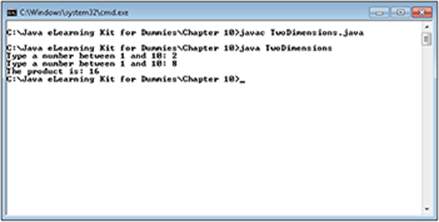
Figure 10-5:
Obtaining the number of dimensions in an array
Sometimes you work with arrays where you don’t know the number of dimensions or the array length at the outset. In some cases, these arrays may be jagged arrays, where each dimension has a different, fixed length. In the following example, you see how to create a jagged array and then use Java features to display the array content and determine the number of array dimensions.
LINGO
A jagged array is one in which each dimension can have a different, fixed length. You can’t change the size of the dimensions after the array is declared, but the predetermined size of each dimension can vary. This approach is helpful when working with real world data where some elements will have more data points than others.
Files needed: ArrayDimensions.java
1. Open the editor or IDE that you’ve chosen to use for this book.
2. Type the following code into the editor screen.
public class ArrayDimensions
{
public static void main(String[] args)
{
// Create a multidimensional array.
int[][][] MultiArray =
{
{
{
1, 2, 3
}
},
{
{
4, 5, 6
},
{
7, 8, 9
}
},
{
{
10, 11
},
{
12, 13, 14
},
{
15, 16, 17, 18
}
}
};
// Output the content of the array.
for (int x = 0; x < MultiArray.length; x++)
for (int y =0; y < MultiArray[x].length; y++)
for(int z= 0; z < MultiArray[x][y].length; z++)
System.out.format("Element %d, %d, %d = %d%n",
x, y, z, MultiArray[x][y][z]);
// Obtain the number of dimensions.
int Dimensions = GetDim(MultiArray);
// When the code runs out of array elements,
// output the result.
System.out.println("The number of dimensions is: " + Dimensions);
}
public static int GetDim(Object Input)
{
// Define the starting number of dimensions.
int Dimensions = 0;
// Obtain the class of the input argument.
Class ThisClass = Input.getClass();
// Keep processing dimensions until done.
while (ThisClass.isArray())
{
// Increment the output for each dimension.
Dimensions++;
// Obtain the class of the next array level.
ThisClass = ThisClass.getComponentType();
}
// Return the number of dimensions.
return Dimensions;
}
}
A multidimensional array need not contain the same number of elements or child arrays per dimension. The example begins by creating MultiArray, a three-dimensional array with a varying number of child arrays and elements for each dimension. Notice how this example treats the multiple dimensions as arrays of arrays. This is a typical approach for creating a multidimensional jagged array.
LINGO
A child array is an array of elements or other child arrays that exists within a parent array. Think of each array as being a list. Sometimes you create a list of lists. The list contained within the list is the child array, while the parent array is the container that holds the child. A child array differs from an element in that an element is a single item, such as a number or a string. As an example, think of a library. An individual book is an element. All of the science fiction books are an array of books. When you place the science fiction book array, the cookbook array, and the horror classic array inside the library array, the library array becomes the parent and the science fiction book, the cookbook, and the horror classic arrays are child arrays.
Most people find it hard to see precisely how the dimensions work just from looking at the array code. So the first thing the example does is output the array elements. Notice how the output code lacks any sort of precise measurement of array dimension length. The length property always provides you with the length of a particular array in a given dimension.
It’s also important to notice how the length property is accessed for each dimension. For example, when you use the length property with MultiArray, as in MultiArray.length, you access the length of the first dimension. To access the length of the second dimension, you must combine it with a specific element of the first dimension — the array within the array — using MultiArray[x].length. For example, to determine the length of the first array within the second dimension, you’d type MultiArray[0].length to access the first element of the first dimension.
The GetDim() method works by checking the class of each dimension. When it runs out of arrays, then it has run out of dimensions as well. Notice that the GetDim() method accepts an argument of type Object, Input. You use an Object type because you can’t be sure that the caller will even supply an array. The first task is to determine whether Input contains an array. If it does, the array has at least one dimension, so the code increments Dimensions to match. The call to ThisClass.getComponentType() obtains the type of the next dimension. If this dimension is also an array, the while loop updates Dimensions again.
After main() calls GetDim(), it places the output value in Dimensions. It then displays the number of dimensions for the user. Notice that this part of the example uses the println() method because it’s easier. However, the earlier output relied on the format() method to make it easier to present the information as nicely formatted output. Always remember to use the correct output method for a given situation.
3. Save the file to disk using the filename ArrayDimensions.java.
4. In your command prompt, type javac ArrayDimensions.java and press Enter.
The compiler compiles your application and creates a .class file from it.
5. Type java ArrayDimensions and press Enter.
The example outputs the content of each element first, and then the number of dimensions, as shown in Figure 10-6. Notice that the example code handles the jagged array without any problem because it makes no assumptions about the array content or size. When writing array code of your own, you always need to consider that the caller could provide an array of any size or shape.
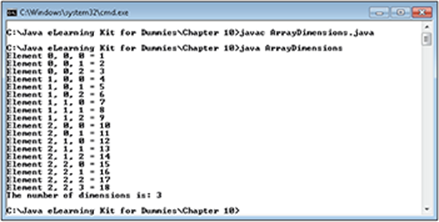
Figure 10-6:
Change the number of entries and general shape of MultiArray. For example, try adding another child array immediately after the
{ 1, 2, 3 } array. Remember to add a comma between subarrays as shown for the other entries in the example. Run the application again. How does the new child array change the output?
Developing variable-length arrays of arrays
Standard arrays in Java are always a fixed size. There’s nothing you can do with a basic Java array to resize it, except as shown in the “Changing the array size” section, earlier in this chapter. However, Java does come with an interesting class that reduces the work required to create and interact with highly flexible arrays — the ArrayList. Using an ArrayList doesn’t remove the Java restrictions, but it does make it possible to circumvent them.
 There’s never a free ride with any technology, however, and the ArrayList is no exception. Yes, an ArrayList provides you significantly greater flexibility and reduces the work you need to perform when dealing with highly flexible arrays, which means you can be more productive. However, you can use only objects with the ArrayList, not primitive types. In addition, an ArrayList requires more memory and works more slowly than a standard array of the same type. To write great programs, you need to balance the pros of using an ArrayList with the cons and make a decision based on actual application requirements.
In the following example, you create an ArrayList that will accept any number of entries. All you need is a loop to keep accepting entries until the user types the correct value, which is –1 in this case. The example also provides some interesting new features, such as the use of a template. In addition, this example incorporates full error trapping.
Files needed: VariableLengthArray.java
1. Open the editor or IDE that you’ve chosen to use for this book.
2. Type the following code into the editor screen.
// Import the required API classes.
import java.util.Scanner;
import java.util.ArrayList;
import java.lang.Integer;
import java.lang.String;
import java.util.InputMismatchException;
public class VariableLengthArray
{
public static void main(String[] args)
{
// Define the variable length array.
ArrayList<Integer> VarArray = new ArrayList<Integer>();
// Create a variable to hold numbers.
int Input = 0;
// Create a variable to hold the output.
String Output = "";
// Create the scanner.
Scanner GetNumber = new Scanner(System.in);
while (Input >= 0)
{
try
{
// Obtain an Integer.
System.out.print("Type a number between 1
and 10 " +
"or type -1 to end the program.");
Input = GetNumber.nextInt();
}
catch (InputMismatchException e)
{
// Make sure Input has a correct value.
Input = 0;
// Clear the scanner.
GetNumber.nextLine();
// Display an error message and try again.
System.out.println("Use numbers between 1 and 10!");
continue;
}
// Check for a number outside the range.
if ((Input > 10) || (Input == 0))
{
// Display an error message and try again.
System.out.println("Use numbers between 1
and 10!");
continue;
}
// Check for an ending condition.
if (Input < 0)
break;
// Add this number to the array.
VarArray.add(Input);
// Clear the old Output content.
Output = "";
// Check to make sure that VarArray contains
// a value.
if (!VarArray.isEmpty())
for (Integer Item : VarArray)
Output += Item + " ";
// Display the result.
System.out.println("Current Array Entries = " + Output);
}
}
}
This example begins by creating an ArrayList object, VarArray. However, this example does something different from what you’ve seen in the past. There’s a parameterized entry after ArrayList, <Integer>. Java lets developers create something called a generic class that you won’t see demonstrated in this book, but which you’ll encounter as you work with Java. A generic class acts as a template for specific object types. You can use the same code to create classes that work only with an Integer or a String. This is an advanced topic, but for now, all you need to know is that the parameter, <Integer>, takes the raw ArrayList and uses it to create a type-specific ArrayList that accepts only Integer values. Using strong typing when you can (a programming technique where the compiler specifically checks the type of each variable that goes into the ArrayList) will reduce the amount of errors in your application because the compiler is better aware of the intent of your code. In addition, strong typing reduces the amount of code you have to write.
LINGO
A generic class is one that provides a single implementation for any sort of object you want to work with. You tell Java the specific kind of object you want to use in a given instance by providing a parameter within angle brackets (<>) after the type declaration. For example, using ArrayList alone creates a raw object that can accept any input, while using ArrayList<Integer> creates an object that will accept only Integer values as input. There are situations where you use a raw type, such as when the ArrayList needs to accept objects of all types, and situations where you use the parameterized type, such as when the ArrayList<Integer> needs to accept onlyInteger objects.
This example relies on the user to provide input values in a specific range by using the Input argument. These values are collected for display in String, Output. A Scanner, GetNumber, provides the means for obtaining user input.
The while loop continues to collect input from the user until the user provides a value less than 0 as input — an incorrect input, in other words. The input prompt and associated GetNumber.nextInt() call appears in a try…catch structure to avoid any potential input problems from the user. This example shows one method of recovering from an input error that makes it possible for the loop to continue running.
When an application requires that the user provide only certain values, it must perform range checking. In this case, the try…catch structure has already excluded anything that isn’t a number, so the range check looks for numbers between 1 and 10. When the user inputs a value outside that range, the code displays an error message and then lets the user try again. Notice that the way the range check is written allows the user to input the value of –1 required to end the application (the line that says if (Input < 0)).
The next if statement addresses the need to end the application. If the user inputs a negative number, the loop ends by executing the break clause.
After all these checks, the code finally calls VarArray.add() to add the number to the array. The application hasn’t set the size of the array because it isn’t necessary. An ArrayList can grow (using the add() method) or shrink (using the remove() method) as needed.
To see what VarArray contains, you need to build a string from its contents. The first step is to ensure Output doesn’t contain anything. The code then checks VarArray to ensure it isn’t empty by calling isEmpty(). A for-each loop makes it possible to add each item in VarArray toOutput. The code then displays the content onscreen.
3. Save the file to disk using the filename VariableLengthArray.java.
4. In your command prompt, type javac VariableLengthArray.java and press Enter.
The compiler compiles your application and creates a .class file from it.
5. Type java VariableLengthArray and press Enter.
The application asks you to provide a numeric input between 1 and 10.
6. Type Hello and press Enter.
The application displays a helpful message asking you to input a number between 1 and 10, as shown in Figure 10-7.
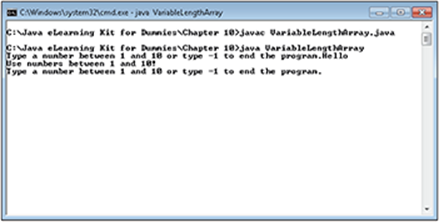
Figure 10-7:
7. Type 99 and press Enter.
The application isn’t fooled this time either. It outputs the same helpful message, as shown in Figure 10-7.
8. Type 5 and press Enter.
You now see that the array contains one entry with a value of 5, as shown in Figure 10-8.
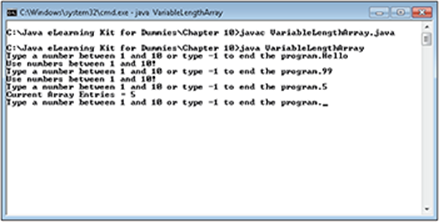
Figure 10-8:
9. Type 8 and press Enter.
The application now has two entries of 5 and 8.
10. Type –1 and press Enter.
The example ends, as shown in Figure 10-9. Many application types rely on a looping mechanism like the one demonstrated in this application. A user continues to enter values until a preselected condition exists. At that point, the application ends.
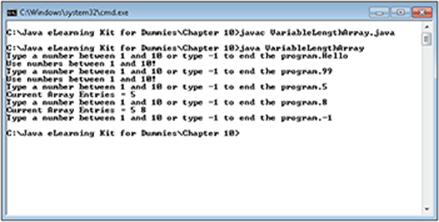
Figure 10-9:
Interacting with Array-Like Structures
Arrays are open-ended structures that you can use to store all sorts of information. However, developers have found that specific array implementations are extremely useful. These array implementations perform specific tasks in applications, and developers use them so often that Java includes special classes to make working with them easier. This chapter helps you discover the four most important array-like structures that are actually special array implementations:
· Stacks: A stack works just like a pile of pancakes. You cook the pancakes and pile them one on top of the other. Then you take the pancakes to the table where you take the topmost pancake off the stack and give it to someone to eat. A stack is a Last In, First Out (LIFO) structure that’s often used to store information between calls to other areas of an application or for other situations where you need to work backward through the list of items.
· Queues: A queue works just like a line at a bank. People arrive and stand at the back of the line. They work their way through the line and when they reach the front, a teller calls on them to address their needs. Many real-world situations require that an application process items in the order they’re received. A queue is called a First In, First Out (FIFO) structure.
· Deques: A deque (pronounced deck) is a mixture of the stack and the queue. You use it when you need both behaviors in an application. There really are times when you need to process from either end of the list depending on the conditions. However, a deque never lets you cheat and obtain values from the middle of the list.
· Lists: A list is a kind of specialized array. You use it to gain the extra functionality needed to perform tasks such as combining lambda expressions with arrays. Using lists can make your code significantly shorter and easier to read than code using a standard array. You can access elements anywhere within a list, just as you do with an array, but lists provide far greater functionality. It’s also possible to treat lists like a stack, queue, or deque as needed.
Using stacks
Stacks rely on some special functionality to work with the list member. In this example, you make it possible for users to push (add) values to the stack and pop (remove) values from the stack. The values are always removed in the opposite order in which you add them.
Files needed: UsingStack.java
1. Open the editor or IDE that you’ve chosen to use for this book.
2. Type the following code into the editor screen.
// Import the required API classes.
import java.util.Scanner;
import java.util.Stack;
import java.lang.String;
public class UsingStack
{
public static void main(String[] args)
{
// Create a stack that holds string values.
Stack<String> PushAndPop = new Stack<String>();
// Create a variable to hold the input.
String Input = "";
// Create a variable to hold the output.
String Output = "";
// Create the scanner.
Scanner GetInput = new Scanner(System.in);
// Continue processing entries until the user
// types quit.
while (!Input.toUpperCase().equals("QUIT"))
{
// Obtain a string for processing.
System.out.print("Type any string you want,
type POP " +
"to remove a value from the stack and
QUIT to " +
"end the program: ");
Input = GetInput.nextLine();
// Check for an exit command.
if (Input.toUpperCase().equals("QUIT"))
break;
// Check for a POP command.
if (Input.toUpperCase().equals("POP"))
if (PushAndPop.isEmpty())
{
System.out.println(
"The stack is empty, nothing to
pop.");
continue;
}
else
{
System.out.println("Popping: " + PushAndPop.pop());
continue;
}
// If the user hasn't quit or popped an
// entry, push an entry onto the stack.
PushAndPop.add(Input);
// Display the contents of the stack.
Output = "";
for (String Item : PushAndPop)
Output += Item + " ";
System.out.println("The stack contains: " +
Output);
}
}
}
The example begins by creating a parameterized Stack of type String named PushAndPop. It then creates the variables required to support the application and starts a processing loop using a while block. Notice that you must call toUpperCase() first, before calling equals() to perform the comparison with QUIT. As always, you must assume that the user can input the value in any case.
At this point, the example obtains input from the user, checks for QUIT and POP. When the user types QUIT, the program ends. When the user types POP, the application first checks to determine whether there’s anything to pop from the stack by calling isEmpty(). If there is, the application pops the value from the stack by calling pop() and displays it onscreen. Otherwise, the application provides a helpful error message. In both cases, the processing loop continues.
When the user has typed something other than QUIT or POP, the application pushes the value onto the stack by calling add() and displays the stack content onscreen. Notice that you can iterate through a stack as you would any array.
3. Save the file to disk using the filename UsingStack.java.
4. In your command prompt, type javac UsingStack.java and press Enter.
The compiler compiles your application and creates a .class file from it.
5. Type java UsingStack and press Enter.
The application asks you to type any string you want and then provides special instructions for popping a value from the stack or ending the application. Notice that the instructions use uppercase for POP and QUIT for emphasis, even though the user doesn’t have to type them in uppercase.
6. Type Hello and press Enter.
The application displays the content of the stack for you, as shown in Figure 10-10.
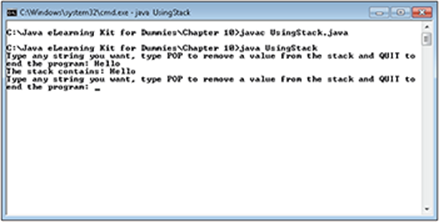
Figure 10-10:
7. Type Goodbye and press Enter.
The application displays the content of the stack again. Notice that it now includes both Hello and Goodbye.
8. Type pop and press Enter.
The application removes a value from the stack. Notice that it removes Goodbye, the last item added, and not Hello, as shown in Figure 10-11.
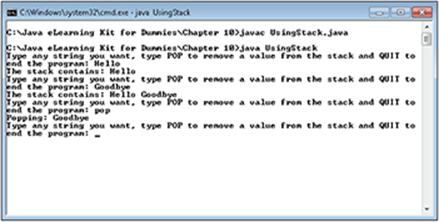
Figure 10-11:
9. Type pop and press Enter.
The application removes Hello from the stack.
10. Type pop and press Enter again.
The application tells you that there’s nothing more to pop from the stack, as shown in Figure 10-12.
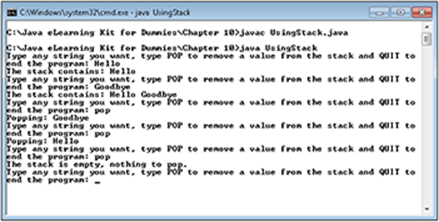
Figure 10-12:
11. Type Quit and press Enter.
The application ends.
Working with queues
Java sometimes gets a little confusing and working with the Queue is one of those situations. A Queue, unlike a Stack, is an interface and not an actual implementation. The “Creating an event listener interface” section in Chapter 9 describes interfaces to a degree.
The important issue to remember is that to use a Queue, you must choose a specific implementation to partner with your Queue, such as a LinkedList. In fact, you can use any of these specific implementations to create a Queue. (Don’t worry about how they differ at this point — this is the sort of information you start to understand as you work with Java more.)
· AbstractQueue
· ArrayBlockingQueue
· ConcurrentLinkedQueue
· DelayQueue
· LinkedBlockingQueue
· LinkedList
· PriorityBlockingQueue
· PriorityQueue
· SynchronousQueue
The odd part about working with these implementations is that they often work with more than one interface. For example, you can also use a LinkedList implementation to create a Deque (as you will in the “Employing deques” section, later in this chapter). The LinkedList is the implementation, while the interface, such as Queue, represents the behavior of that implementation.
In the following example, you create a Queue that’s implemented by a LinkedList. The LinkedList implementation is the most commonly found form of Queue. This example uses code that’s similar to the Stack example in the “Using stacks” section of the chapter.
Files needed: UsingQueue.java
1. Open the editor or IDE that you’ve chosen to use for this book.
2. Type the following code into the editor screen.
// Import the required API classes.
import java.util.Scanner;
import java.util.Queue;
import java.util.LinkedList;
import java.lang.String;
public class UsingQueue
{
public static void main(String[] args)
{
// Create a queue that holds string values.
Queue<String> MyQueue = new LinkedList<String>();
// Create a variable to hold the input.
String Input = "";
// Create a variable to hold the output.
String Output = "";
// Create the scanner.
Scanner GetInput = new Scanner(System.in);
// Continue processing entries until the user
// types quit.
while (!Input.toUpperCase().equals("QUIT"))
{
// Obtain a string for processing.
System.out.print("Type any string you want,
type REMOVE " +
"to remove a value from the queue and
QUIT to " +
"end the program: ");
Input = GetInput.nextLine();
// Check for an exit command.
if (Input.toUpperCase().equals("QUIT"))
break;
// Check for a REMOVE command.
if (Input.toUpperCase().equals("REMOVE"))
if (MyQueue.isEmpty())
{
System.out.println(
"The queue is empty, nothing to remove.");
continue;
}
else
{
System.out.println("Popping: " +
MyQueue.poll());
continue;
}
// If the user hasn't quit or popped an
// entry, add an entry onto the queue.
MyQueue.offer(Input);
// Display the contents of the queue.
Output = "";
for (String Item : MyQueue)
Output += Item + " ";
System.out.println("The queue contains: " +
Output);
}
}
}
The code for this example is similar to the code for the UsingStack example on purpose. It’s important to see how stacks and queues differ. The important changes are that you call poll() to remove an element from the queue in a way that won’t cause an exception. Likewise, you calloffer() to add an element to the queue in a way that won’t cause an exception if the queue is size-constrained or whether there are other problems.
3. Save the file to disk using the filename UsingQueue.java.
4. Type javac UsingQueue.java and press Enter.
The compiler compiles your application and creates a .class file from it.
5. Type java UsingQueue and press Enter.
The application asks you to type any string you want and then provides special instructions for removing a value from the queue or ending the application.
6. Type Hello and press Enter.
The application displays the content of the queue for you.
7. Type Goodbye and press Enter.
The application displays the content of the queue again. Notice that it now includes both Hello and Goodbye.
8. Type remove and press Enter.
The application removes a value from the queue. Notice that it removes Hello, the first item added, and not Goodbye, as shown in Figure 10-13. This behavior is precisely opposite of a stack.
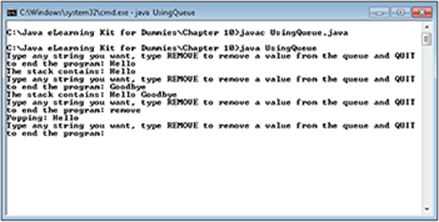
Figure 10-13:
9. Type remove and press Enter.
The application removes Goodbye from the queue.
10. Type remove and press Enter again.
The application tells you that there’s nothing more to remove from the queue.
11. Type Quit and press Enter.
The application ends, as shown in Figure 10-14.
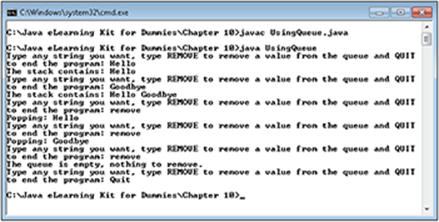
Figure 10-14:
Employing deques
As previously mentioned, deques are a combination of a stack and a queue. You can work with either end of the deque as needed. In the following example, you create an expanded version of the UsingQueue example that demonstrates the capabilities of a deque.
Files needed: UsingDeque.java
1. Open the editor or IDE that you’ve chosen to use for this book.
2. Type the following code into the editor screen.
// Import the required API classes.
import java.util.Scanner;
import java.util.Deque;
import java.util.LinkedList;
import java.lang.String;
public class UsingDeque
{
public static void main(String[] args)
{
// Create a deque that holds string values.
Deque<String> MyDeque = new LinkedList<String>();
// Create a variable to hold the input.
String Input = "";
// Create a variable to hold the output.
String Output = "";
// Create the scanner.
Scanner GetInput = new Scanner(System.in);
// Continue processing entries until the user
// types quit.
while (!Input.toUpperCase().equals("QUIT"))
{
// Obtain a string for processing.
System.out.print("Type any string you want,
type FIRST" +
" to remove a value from the front of
the deque," +
" LAST to remove a value from the end
of the " +
"deque, and QUIT to end the program:
");
Input = GetInput.nextLine();
// Check for an exit command.
if (Input.toUpperCase().equals("QUIT"))
break;
// Check for a FIRST command.
if (Input.toUpperCase().equals("FIRST"))
if (MyDeque.isEmpty())
{
System.out.println(
"The deque is empty, nothing to remove.");
continue;
}
else
{
System.out.println("Removing: " +
MyDeque.pollFirst());
continue;
}
// Check for a LAST command.
if (Input.toUpperCase().equals("LAST"))
if (MyDeque.isEmpty())
{
System.out.println(
"The deque is empty, nothing to remove.");
continue;
}
else
{
System.out.println("Removing: " +
MyDeque.pollLast());
continue;
}
// If the user hasn't quit or removed an
// entry, add an entry onto the deque.
// However, add the entry to the beginning
// when it's less than the current beginning
// entry or to the end when it isn't.
if (MyDeque.isEmpty())
MyDeque.offer(Input);
else
if (MyDeque.peekFirst().compareTo(Input) >= 0)
MyDeque.offerFirst(Input);
else
MyDeque.offerLast(Input);
// Display the contents of the deque.
Output = "";
for (String Item : MyDeque)
Output += Item + " ";
System.out.println("The deque contains: " +
Output);
}
}
}
This example works almost precisely the same as the UsingQueue example. The difference is that this example can add or remove entries at either end of the list, but not from the middle. When the user types FIRST, the deque removes an entry from the front of the list. Likewise, when the user types LAST, the deque removes an entry from the end of the list. The example adds items either to the front or the back of the list based on the contents of the list. When the new item has a value that is less than the item that exists at the beginning of the list from a comparison perspective, the application adds that item to the front of the list.
3. Save the file to disk using the filename UsingDeque.java.
4. In your command prompt, type javac UsingDeque.java and press Enter.
The compiler compiles your application and creates a .class file from it.
5. Type java UsingDeque and press Enter.
The application asks you to type an entry. You can also type FIRST to remove an entry from the front of the list, LAST to remove an entry from the end of the list, or QUIT to end the program.
6. Type Red and press Enter.
The application adds a new entry to the list.
7. Type Yellow and press Enter.
Because a string with a value of Yellow is greater than a string with a value of Red (Y comes after R in the alphabet), the entry is added to the end of the list, rather than the beginning of the list.
8. Type Blue and press Enter.
Because Blue is less than Red, the entry is added to the beginning of the list. What you see now is that Red is bracketed by Blue and Yellow, as shown in Figure 10-15.
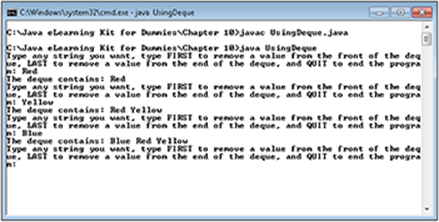
Figure 10-15:
9. Type First and press Enter.
Notice that the application removes Blue from the list. That’s because Blue is at the front of the list.
10. Type Last and press Enter.
The application removes Yellow from the list because Yellow is at the end of the list. Of course, Red is left alone at this point, so it doesn’t matter whether you type FIRST or LAST to remove it.
11. Type Quit and press Enter.
The application ends, as shown in Figure 10-16.
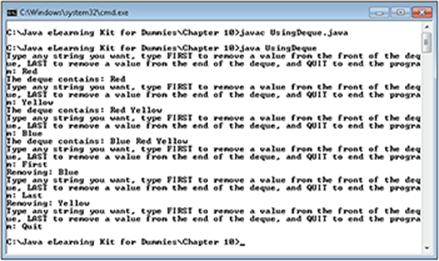
Figure 10-16:
Iterating arrays by using List elements and lambda expressions
You can’t easily use lambda expressions with standard arrays. However, you can use them with List elements, which provide all of the features of arrays, plus the ability to perform tasks such as resizing the array. Instantiating a List is considerably easier than using standard arrays a well. The example in this section shows how you can create, instantiate, and enumerate a List by using just two lines of code.
Files needed: LambdaArray.java
1. Open the editor or IDE that you’ve chosen to use for this book.
2. Type the following code into the editor screen.
// Import the required API classes.
import java.util.List;
import java.util.Arrays;
public class LambdaArray
{
public static void main(String[] args)
{
// Define an array of integer values.
List<Integer> MyArray = Arrays.asList(0, 1, 2, 3, 4);
// Use a for-each loop to display the values.
MyArray.forEach(ThisValue -> System.out.println(ThisValue));
}
}
When creating a List, you must tell Java what type of List to create. In this case, you see an Integer list that contains numeric information. One of many ways to instantiate a List relies on a call to Arrays.asList(), where you supply the values you want the List to contain. When you compare this example to early examples in this chapter, you see that using a List is quite a bit faster and easier to understand.
Interacting with the List after you create it relies on special methods for the most part, such as forEach(). In this case, the method examines each List element in turn, passes the value to ThisValue, and then prints ThisValue on screen. Of course, your lambda expression can perform any task desired with the value — the example represents a simpler demonstration of what you can do.
3. Save the file to disk using the filename LambdaArray.java.
4. In your command prompt, type javac LambdaArray.java and press Enter.
The compiler compiles your application and creates a .class file from it.
5. Type java LambdaArray and press Enter.
You see the expected output shown in Figure 10-17. Of course, you can easily fill the array elements with any int value.
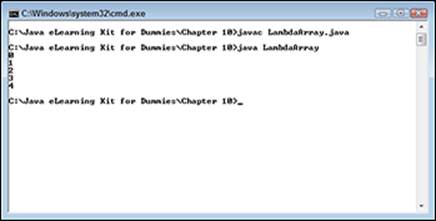
Figure 10-17:
Using Maps to Create Collections
Arrays and the specialized lists described in the chapter so far make it possible to perform an amazing array of tasks with Java. However, there are situations where a Java application needs something that’s more akin to a database, without actually having all the database baggage (such as having to buy a separate application). For example, you might want to be able to find a specific value in a list without having to look at every element individually. The following sections describe a special sort of collection called a Map. The Map is an incredibly useful sort of storage container that makes many tasks easier.
Before you go any further though, always remember that every time you add functionality to a class, it causes an increase in class size. In addition, the class runs more slowly and can become harder to understand. If an array will serve the purpose in your application, use an array. Only use a Map when you need the specialized functionality that a Map provides.
Defining the map
The Map, like many basic container classes in Java, is actually an interface. A Map describes a class that provides a key and value pair for storing information. The key gives the data a unique name. No two entries can have the same key, which makes it possible to search for the key and always return a unique value. Any number of keys can have the same associated value.
As with any interface, you must create an implementation before you can use it. The Map is so incredibly useful that Java has a host of implementing classes associated with it. Here’s the list of classes you can use to create a Map (again, you don’t need to worry about the specifics of these classes for now — you’ll begin to understand these differences as you create more Java applications):
· AbstractMap
· Attributes
· AuthProvider
· ConcurrentHashMap
· ConcurrentSkipListMap
· EnumMap
· HashMap
· Hashtable
· IdentityHashMap
· LinkedHashMap
· PrinterStateReasons
· Properties
· Provider
· RenderingHints
· SimpleBindings
· TabularDataSupport
· TreeMap
· UIDefaults
· WeakHashMap
A single section of a chapter can’t even begin to discuss all these classes. You’ll likely see a few more of these classes as the book progresses though. The important thing to remember is that all Map classes rely on a unique key to identify data and a value to hold the data.
Creating a map example
The example in this section defines a sorted list of people and the amount of money they owe. The example concentrates on getting you started with the Map interface — it won’t demonstrate every feature that this class provides. In this case, you use a TreeMap class (one of the most useful classes for sorting data) to implement the Map interface.
Files needed: UsingMaps.java
1. Open the editor or IDE that you’ve chosen to use for this book.
2. Type the following code into the editor screen.
// Import the required API classes.
import java.text.NumberFormat;
import java.util.Locale;
import java.util.Map;
import java.util.TreeMap;
import java.lang.String;
import java.math.BigDecimal;
public class UsingMaps
{
public static void main(String[] args)
{
// Create a new Map object.
Map<String, BigDecimal> MyMap =
new TreeMap<String, BigDecimal>();
// Fill the Map with some entries.
MyMap.put("Jake", new BigDecimal(30.00));
MyMap.put("Ann", new BigDecimal(35.00));
MyMap.put("Sally", new BigDecimal(22.00));
MyMap.put("Adam", new BigDecimal(120.00));
MyMap.put("Zak", new BigDecimal(15.00));
MyMap.put("Jane", new BigDecimal(45.00));
// Create a formatter to use.
NumberFormat Currency =
NumberFormat.getCurrencyInstance(Locale.
US);
// Obtain each entry in order.
System.out.println("Displaying the inital
entries:");
for (Map.Entry<String, BigDecimal> Item : MyMap.
entrySet())
{
// Display the entries.
System.out.format("%s owes %s%n", Item.
getKey(),
Currency.format(Item.getValue()));
}
// Remove an entry.
MyMap.remove("Sally");
// Add another one.
MyMap.put("Toby", new BigDecimal(99.00));
// Display the values again.
System.out.println("\nDisplaying the updated
entries:");
for (Map.Entry<String, BigDecimal> Item: MyMap.
entrySet())
{
// Display the entries.
System.out.format("%s owes %s%n", Item.getKey(),
Currency.format(Item.getValue()));
}
}
}
The example begins by creating a parameterized Map, MyMap. The key is of type String, and the value is of type BigDecimal. Notice how you separate the parameters with a comma. MyMap is a TreeMap, which means that it’s automatically sorted for you. TreeMap also provides a number of useful methods, some of which you see in the code.
Because the new Map is empty, the application begins by adding some entries using the put() method. Every entry consists of a key and value pair. It doesn’t matter what order you use to enter the data — MyMap will automatically sort it for you.
The values in this list are the amounts each person owes. Consequently, the code creates a NumberFormat object named Currency that relies on the formatting used in the U.S.
The next step is to use a for-each loop to list the contents of MyMap. Notice how you use the MyMap.Entry type to create a single entry, Item. To gain access to the entries, the code calls MyMap.entrySet(). Because this output is a little more complex, the application uses the format()method in place of println(). It displays how much each person in the list owes. The call to Currency.format() formats the numeric value in Item.getValue() as a dollar amount in a String.
To show how easy it is to manipulate the list, the code calls on MyMap.remove() to remove a specific entry using its key. It then adds another new entry and displays the result again. A Map makes it easy to change the list entries and find any entry you need.
3. Save the file to disk using the filename UsingMaps.java.
4. In your command prompt, type javac UsingMaps.java and press Enter.
The compiler compiles your application and creates a .class file from it.
5. Type java UsingMaps and press Enter.
The example outputs the original list information first and then the modified list information, as shown in Figure 10-18. Notice that in both cases, the list is always sorted. You don’t have to do anything special to obtain this service.
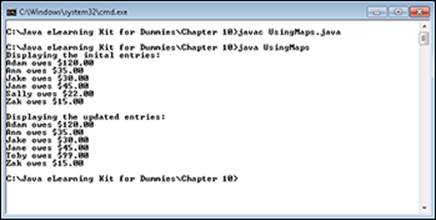
Figure 10-18:
Working with Java Annotations
You’ve seen comments used in most of the examples in the book. The compiler ignores comments, so when you create a comment you can write anything that you feel will be helpful later in figuring out what the application can do. Comments document your code. However, there is another kind of documentation — the annotation. An annotation is a kind of documentation that the compiler also understands. When the compiler sees annotation in your code, it knows that it needs to do something special with the code that follows. Annotations are helpful in documenting your code in a functional way so that the compiler can help you enforce whatever documentation you provide.
LINGO
An annotation is a kind of documentation for your application code that the compiler can understand. Unlike a comment, the compiler can act on an annotation to help others work with your code more efficiently.
Understanding annotations
The kinds and content of annotations, like comments, are limited only by your imagination. Yes, Java provides some predefined annotations, but you can also create annotations that describe program elements in any way you want. The idea is that you describe how an annotation should work, provide data for it, and the compiler takes care of the rest.
Annotations always begin with the @ (at) symbol. So, when you see @Documented, you know that you’re seeing an annotation. The following sections tell you more about predefined and custom annotations.
Using predefined annotations
A predefined annotation is one that exists as part of Java. You find these annotations in the java.lang.annotation package. To use them, you add import java.lang.annotation.*; to the beginning of your application. The following list provides an overview of the predefined annotations:
· @Deprecated: Sometimes an element — a class, method, field, or other programming feature — is superseded by a newer element or is simply no longer needed. When this happens, you mark the element as deprecated so that developers know they need to update their code and stop using that particular element. Adding the @Deprecated annotation outputs the deprecated status of the element in the documentation generated by Javadoc (a utility that is used to create documentation automatically based on the content of your code files).
· @Documented: Any time you mark an element as documented, the Javadoc utility outputs it to the documentation file it creates based on the source file content.
· @FunctionalInterface: Specifies that the interface is a functional interface used for anonymous classes and lambda expressions, as described in Chapter 9.
· @Inherited: Classes can inherit characteristics from a parent class. By default, this includes functionality such as methods but doesn’t include the parent class’s annotations. Using the @Inherited annotation tells Java to apply the parent class annotations to the subclass as well.
· @Override: Specifies that a child class element is overriding a superclass (parent class) element. If this annotation is present and the superclass lacks an element of the same name, the compiler outputs an error so that you know something is wrong with the override.
· @Repeatable: Most annotations are applied only once to a particular element. However, in some cases you need to apply the annotation more than once. This annotation tells Java that it’s acceptable to apply the annotation to a particular element more than one time.
· @Retention: An annotation can affect only the source code; the source code and compiler; or the source code, compiler, and JVM. This annotation defines what effect another annotation should have. For example, you may need only a documentation-specific annotation to affect the source code and compiler.
· @SafeVarargs: It’s possible to perform operations that aren’t safe on the arguments passed to a method or constructor. This annotation says that the code doesn’t do anything unsafe and therefore doesn’t require all the usual checks. Reducing the number of checks makes the application run faster.
· @SuppressWarnings: The Java compiler outputs a wealth of warnings to signal potential problems. For example, if you try to use a deprecated method in your code, the compiler outputs a warning message about it. This annotation tells the compiler not to output such warnings for the affected element.
· @Target: When you create your own annotations, it can be helpful to tell the compiler that these annotations should affect only a specific element type. For example, if you create an author block that is meant to appear only at the package level, then you can limit the annotation to just that element type by using the @Target annotation.
Creating new annotations
The set of predefined annotations that come with Java are relatively limited in use. To create really useful annotations, you have to design them yourself or get them as part of a third-party package. Creating a new annotation is a three-step process:
1. Add the appropriate import statement:
import java.lang.annotation.*;
2. Define an interface that describes the annotation to the compiler:
// Create an annotation description.
@Documented
@interface AuthorData
{
String Name();
String Date();
double Version() default 1.0;
}
In this case, the annotation will appear in the documentation created by Javadoc because it includes the @Documented annotation. Every annotation description starts with the @interface keyword followed by the name of the annotation type, which is AuthorData in this case.
Within the curly braces, you see the fields used to define the annotation data. This example includes Name, Date, and Version. The default keyword provides a value for a particular field. This means the field will use the value if it isn’t defined as part of the annotation in the application.
3. Use the annotation in the application:
@AuthorData
(
Name = "John Smythe",
Date = "04/01/2014"
)
The annotation appears before the element it affects, such as a class declaration. You must define each field that doesn’t have a default value. Optionally, you also define fields that do have a default value. In this case, the name of the author is John Smythe, and the code was last updated on 04/01/2014.
Using annotations
GO ONLINE
Annotations are an incredibly powerful new feature in that they can help others interact with your code with considerably fewer errors. In addition, annotations can help you document your code more clearly and even provide special functionality. With this in mind, some developers are creating annotation plugins that you’ll be able to use with prepackaged annotations. One of the more important existing plugins is the Checker Framework found at http://types.cs.washington.edu/checker-framework/. This framework provides access to type checking annotations, such as @NonNull, which ensures an object has a non-null value and @ReadOnly, which creates static objects that others can’t change. You can read more about these plugins athttp://docs.oracle.com/javase/tutorial/java/annotations/type_annotations.html.
Annotations can take several forms in an application. The intent is to provide some type of documentation and then react to that documentation in some way. For example, if you attempt to use a method that is documented as deprecated, the compiler should generate a warning message to tell you about it unless the call is marked with the @SuppressWarnings annotation. The following example shows various ways in which you can use annotations in your application.
Files needed: Annotations.java
1. Open the editor or IDE that you’ve chosen to use for this book.
2. Type the following code into the editor screen.
// Import the required API
// classes.
import java.lang.annotation.*;
// Create an annotation
// description.
@Documented
@interface AuthorData
{
String Name();
String Date();
double Version() default 1.0;
}
// Use the annotation description.
@AuthorData
(
Name = "John Smythe",
Date = "04/01/2014"
)
public class Annotations
{
@SuppressWarnings("deprecation")
public static void main(String[] args)
{
// Call on the deprecated method.
SayHello("Hello There!");
}
// Define a deprecated method.
@Deprecated
static void SayHello(String value)
{
System.out.println(value);
}
}
In this case, the code begins by creating a new annotation named AuthorData. You can read about this process in the “Creating new annotations” section of this chapter. Your custom annotations will normally appear in a separate package, but this one is shown as part of the application code for the sake of simplicity.
The next step is to use the @AuthorData annotation to document the Annotations class declaration. The annotation will actually appear in the Javadoc output as part of the class information.
This example contains a deprecated method, SayHello(). Of course, using that method will generate an error unless you also tell the compiler that it’s acceptable to use it in particular cases. You can see the use of both the @Deprecated and @SuppressWarnings predefined annotations in this example.
3. Save the file to disk by using the filename Annotations.java.
4. In your command prompt, type javac Annotations.java and press Enter.
The compiler compiles your application and creates a .class file from it. Notice that the compiler doesn’t generate any warnings for the deprecated SayHello() method.
5. Type java Annotations and press Enter.
You see a simple output message from the application.
 Summing Up
Here are the key points you learned about in this chapter:
· An array is a list of like items that you can access one element at a time.
· Arrays provide methods and properties that describe the array object. In addition, you can access element methods and properties just as you would the base type.
· Any array you create is immutable, which means that you must create a new array to resize an existing array.
· Each array dimension requires a set of square brackets ([]) to define it. So a two-dimensional array requires two sets ([][]).
· Stacks implement a LIFO structure that removes the last item added to the list first.
· Queues implement a FIFO structure that removes the first item added to the list.
· Deques provides a combination of the capabilities found in both stacks and queues.
· Lists make it possible to combine array-like structures with lambda expressions to create a more flexible whole that also requires considerably less code to use.
· A Map is a kind of interface that you use to create complex lists that rely on key and value pairs.
· Type annotations make it possible to document a code element in a way that the compiler understands, such as indicating that an element is deprecated.
Try-it-yourself lab
For more practice with the features covered in this chapter, try the following exercise on your own:
1. Open the TwoDimensions.java file supplied with the source code for this book.
2. Save the file as ThreeDimensions.java.
3. Change the class name to ThreeDimensions.
The class name must always match the filename. Otherwise, Java won’t compile the file for you.
4. Add a third dimension to MathTable and fill the table with x, y, and z data.
5. Add a third numeric input statement with its associated prompt.
This code relies on the Scanner. So, you’d have a line such as int ZAxis = GetNumber.nextInt(); in your code. Make sure you include a prompt for the information.
6. Compile the application.
7. Run the application.
8. Provide the three inputs required by the prompts.
Does the application output the correct results? For example, does 2 * 3 * 4 actually display an output of 24?
Know this tech talk
· annotation: A method of adding documentation to application source code where the compiler can see and interact with the document. This is contrasted to a comment, which is documentation that the compiler can’t see.
· array: The simplest type of list that Java supports. You can add, access, and remove array elements in any order.
· array element: An individually accessible item within the list of items stored in an array. The elements are numbered from 0 through the end of the array. Each element is accessed using its unique number.
· deque: A double-ended queue — one in which you can add or remove items from either end of the list, but not from the middle of the list. The term deque is pronounced as deck.
· generic class: A class that relies on a template to create objects of a specific type using generic code that applies equally to all types. The developer provides a parameter that specifies the kind of object the generic class should create. For example, ArrayList<Integer> takes a rawArrayList that accepts any object and turns it into a parameterized ArrayList that accepts only Integer data.
· immutable: A variable that can’t change its characteristics once you create it.
· jagged array: An array in which the dimensions aren’t of equal length. The dimension sizes remain fixed after declaration, but the array lacks a precise number of elements per dimension. This type of array is helpful in real-world situations where objects have a differing number of data points.
· lambda expression: An anonymous class that contains just one functional interface and one method. Normally, a lambda expression is designed to perform a task using the shortest possible code.
· lookup table: An array that’s used to hold calculated information that an application uses relatively often. Calculating the information once and storing it in a table makes the application run faster.
· map: An intelligent array of items that provides database-like capabilities for data management. A map creates an ordered collection of data that makes it possible to perform complex analysis with less work than an array would require.
· parameterized type: A data type that creates container objects that can hold objects of a specific type. The parameter appears within angle brackets (<>) after the type declaration and defines specifically which type the container will hold. For example, ArrayList<Integer> declares an ArrayList object that will hold only Integer values. By declaring a specific type, the container can perform type-checking and raise an exception when the application tries to place the wrong type within the container object. The advantages are that the developer obtains additional error-checking, there’s less code to write, and the code typically runs faster because the variable type is known during compile type. However, these advantages come at a loss of flexibility, so sometimes the right choice is to use a raw type in place of the parameterized type.
· queue: A method of creating an array-like structure where items are removed in the order they are added. This is a First In, First Out (FIFO) structure. When visualizing a queue, think of a line at the bank or grocery store where people enter the queue and wait until it’s their turn to receive service.
· raw type: A data type that creates container objects that can hold objects of any type. For example, both the Type class and the Array List class are container types that you can use as a raw type to hold objects of any sort.
· stack: A method of creating an array-like structure where the last item added is the first item removed from the list. This is a Last In, First Out (LIFO) structure. When visualizing a stack, think of a stack of pancakes, where the last pancake added is the first one you’d eat.
All materials on the site are licensed Creative Commons Attribution-Sharealike 3.0 Unported CC BY-SA 3.0 & GNU Free Documentation License (GFDL)
If you are the copyright holder of any material contained on our site and intend to remove it, please contact our site administrator for approval.
© 2016-2026 All site design rights belong to S.Y.A.