SQL Bootcamp: Learn the Basics of SQL Programming in 2 Weeks (2016)
Chapter 2. The Basic Concepts of Relational Database Management Systems
SQL is a language you can use to interact with relational database management systems. Thus, you should also understand the basic characteristics of these database systems. This chapter will explain the basics of RDBMSs so that you can successfully learn SQL in 14 days.
What is a Database Table?
In a RDBMS, information is saved inside a database object known as a“table.” A table is a set of related database entries and is composed of rows and columns.
You should know that tables are the most basic and common forms of information storage in relational database systems. Here’s an example of a database table:
|
ID |
Name |
Sex |
State |
|
1 |
John |
Male |
|
|
2 |
Mark |
Male |
Florida |
|
3 |
Christian |
Male |
Texas |
|
4 |
Paul |
Male |
Illinois |
|
5 |
James |
Male |
Nevada |
|
6 |
Peter |
Male |
Arkansas |
|
7 |
Simon |
Male |
Virginia |
Fields
Each database table contains smaller parts known as“fields.” In the example given above, the fields are: ID, Sex, Name, and State.
Fields are columns inside a table that are created to retain certain information about each database record.
Rows
A row, also known as a“data record,” is an individual database entry stored in a table. For instance, the table shown above has seven records. Here is a sample record:
|
1 |
John |
Male |
Basically, records are horizontal entities found inside a table.
Columns
Columns are vertical entities found inside a table. They contain information related to a certain field. For instance, ID is one of the columns in the example given above. It represents the identification number of the listed people.
|
ID |
|
1 |
|
2 |
|
3 |
|
4 |
|
5 |
|
6 |
|
7 |
Null Values
Null values in a database table are blank. That means fields that contain“NULL” are empty.
You should keep in mind that NULL values are different from zeroes and“spaces” (i.e. the character you’ll get after hitting the spacebar). A field acquires NULL when the database user doesn’t enter any value during table creation.
The Constraints in SQL
In SQL, a constraint is a rule applied on certain data columns. It is used to restrict the kind of information that can be stored in the table. Basically, constraints help you in ensuring the reliability and accuracy of your databases.
You can apply constraints on a tabular or columnar level. Thus, you may apply constraints on certain columns or entire tables.
Here are some of the popular constraints in the SQL programming language:
· UNIQUE– This constraint prevents data redundancy in your selected columns. For instance, you may need to prevent listed users from having the same identification number. Analyze the following example:
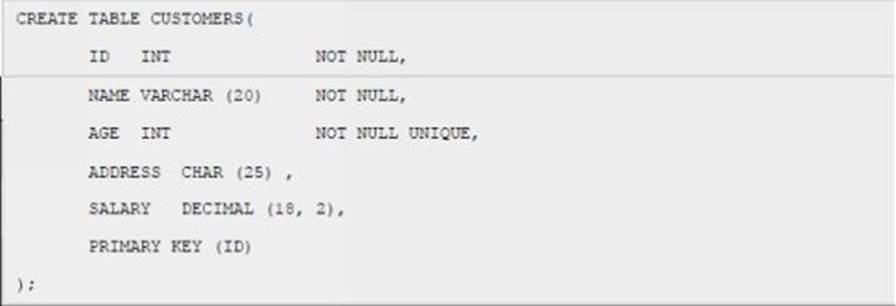
This code creates a table named CUSTOMERS and divides it into five columns. The UNIQUE constraint is applied on the AGE column, so you can’t enter two or more customers with identical age.
If you want to apply this constraint on an existing column, you may use the following syntax:
ALTER TABLE (insert name of table here)
MODIFY (insert name of column) (specify the value type) NOT NULL UNIQUE;
· DEFAULT– This constraint allows you to set default data. However, you can only use this if INSERT INTO (another SQL statement) doesn’t have a particular value. Here’s an example:

This code generates a table named CUSTOMERS and divides it into 5 columns. As you can see,“5000.00” is tagged as the default value for the salary column. That means if you can’t add any value using the INSERT INTO command, the column will receive 5000.00 automatically.
To remove this constraint, you may use the following syntax:
ALTER TABLE (insert name of table here)
ALTER COLUMN (insert name of column here) DROP DEFAULT;
· NOT NULL– Columns can contain NULL values. If you don’t want to have NULL values in certain columns, however, you may utilize this constraint. This constraint will prevent the system from entering NULL values in the columns you specified.
Important Note: NULL values represent unknown information. Thus, they are different from“no information.”
The screenshot below shows you how to apply the NOT NULL constraint using SQL:

The code given above generates a table named CUSTOMERS and creates 5 columns. You cannot enter NULL values in ID, AGE, and NAME because the NOT NULL constraint is applied on them.
To apply NOT NULL on an existing column, use the following syntax:
ALTER TABLE (name of table here)
MODIFY (name of column) (specify value type) NOT NULL;
· CHECK– This constraint can check the values you are storing into the table. If the specified condition gives“false,” you won’t be able to add a value into your records. Analyze the code given below:

That code creates a table named CUSTOMERS and divides it into five columns. The CHECK constraint is applied on AGE. Based on its condition (i.e. >= 18), you won’t be able to add customers whose age is below 18.
To apply this constraint on an existing table, you should use the following syntax:
ALTER TABLE (name of table you want to edit)
MODIFY (name of column you want to use) (specify the value type) NOT NULL CHECK (name of column and the condition you want to apply);
· INDEX– You should use this constraint to generate or retrieve data quickly. When creating an index, you may select a single column or a set of columns. Active indices receive a ROWID for every row before they sort out the information.
Good indices are necessary if you want to improve the reliability and performance of your databases. However, you should be extremely careful while creating an index. You should choose the fields that you’ll use while running database searches. The SQL statement below creates a table named CUSTOMERS and divides it into 5 columns:
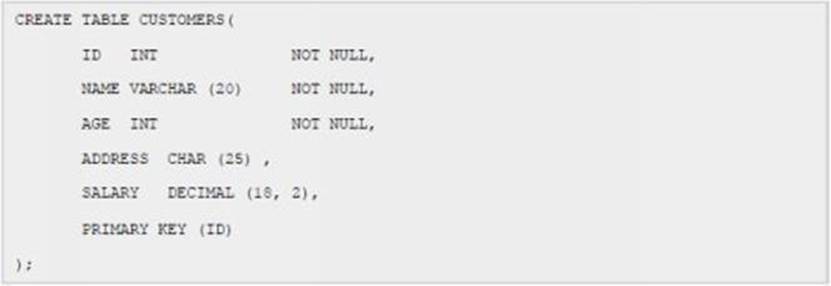
· Primary Key– This is a field that identifies every record inside the table. When creating a primary key, you may use a single field or combine several ones. Keys that involve several fields are known as“composite keys.” Primary keys must hold unique values (i.e. they won’t accept duplicate or NULL values).
o How to assign a primary key while creating a new table - Use the following syntax when defining a primary key in your new tables:

o How to assign a primary key for an existing table– Here’s the syntax you should use:
ALTER TABLE (insert name of table here) ADD PRIMARY KEY (specify the name of column here);
Important Note: If you’ll assign a column as the primary key, you have to make sure that it won’t accept NULL values.
o How to delete a primary key - To disable a primary key, you should use the following syntax:
ALTER TABLE (name of table) DROP PRIMARY KEY;
· Foreign Key– This key allows you to link data tables. For this reason, some programmers refer to foreign keys as“referencing keys.”
Foreign keys are columns whose values are identical to the primary key of another table. That means the primary key of one table must match the foreign key of a different table.
To help you understand this concept, let’s use two sample tables: CUSTOMERS and ORDERS.
The CUSTOMERS table:

The ORDERS table:

If you want to assign a foreign key on an existing table, you should use the following syntax:
ALTER TABLE (insert the table’s name here)
ADD FOREIGN KEY (specify the column you want to use as the foreign key) REFERENCES (name of the table you want to use as a reference) (name of the second table’s primary key);
All materials on the site are licensed Creative Commons Attribution-Sharealike 3.0 Unported CC BY-SA 3.0 & GNU Free Documentation License (GFDL)
If you are the copyright holder of any material contained on our site and intend to remove it, please contact our site administrator for approval.
© 2016-2026 All site design rights belong to S.Y.A.