Android Programming: Pushing the Limits (2014)
Part III. Pushing the Limits
Chapter 15. The Hidden Android APIs
Android developers know that tons of features in the platform aren’t accessible through the official and public
APIs. For instance, although Android has classes for sending SMS (SmsManager and SmsMessage), there is no
official API for receiving them. Nevertheless, you can find several applications on the Google Play Store site that
provide full-featured SMS clients, and many apps are built around incoming SMS. Although a simple Google
search will give the necessary information for how to receive SMS in an Android application, you’ll come upon
many other cases where the hidden platform APIs in Android could be useful in applications.
In this chapter, I explain how and where to find hidden APIs. I also describe different methods for accessing
them and how to do so in a safe and secure way.
Most of the hidden Android APIs are also protected by permissions that have a protectionLevel of
signature or system (refer to Chapter 12). Although you can’t use these APIs in regular applications you
publish on the Google Play Store, you can still use them in applications you write for a custom firmware. Doing
so allows you to access these APIs without changing the Android platform. (See Chapter 16 for more on how to
build a custom firmware.)
Official and Hidden APIs
The official APIs are all the classes, interfaces, methods, and constants found in the SDK documentation.
Although these APIs are usually enough for most applications, at times you’ll want to access something more,
but don’t know how to find them in the official APIs.
When Google publishes the Android SDK, it contains a JAR file (android.jar) that you use as a reference
when compiling your code. You can find this file via <sdk root>/platforms/android-<API level>/.
The file contains only empty classes, meaning that it includes only the public and protected declarations and all
code within the methods has been scrubbed away. This JAR file is generated as part of the SDK when you build
the platform.
The scrubbed android.jar file is generated when the SDK is built by inspecting each source file and
excluding every field (such as constants), method, and class with the JavaDoc annotation @hide (see Figure 15-1).
This means that these symbols are still accessible to the implementation running on the device but they aren’t
visible at compile time.
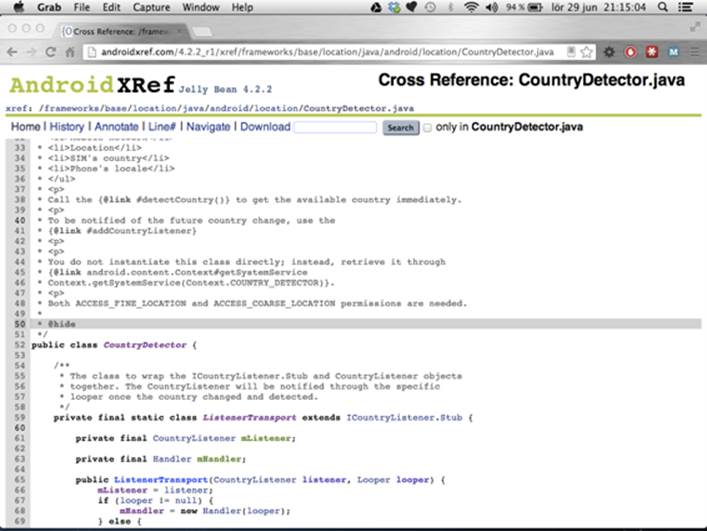
Figure 15-1 The source code for the hidden class CountryDetector . Note the @hide annotation for the JavaDoc .
Some APIs in Android are hidden automatically, without the @hide annotation. You can usually find these APIs
in the package com.android.internal, which is never part of the android.jar but does contain lots of
code for internal use in Android. You can find some of the other hidden APIs in the system applications. These APIs
usually have ContentProvider information for the system providers that isn’t included in the official SDK.
Discovering Hidden APIs
The easiest way to find the hidden APIs is to search for them in the Android source code. The source code for the
Android platform is vast, but fortunately several online sites have indexed the code and made it searchable. One
such site is AndroidXRef (http://androidxref.com), which allows you to search all the open source code
for all officially released Android versions (see Figure 15-2).
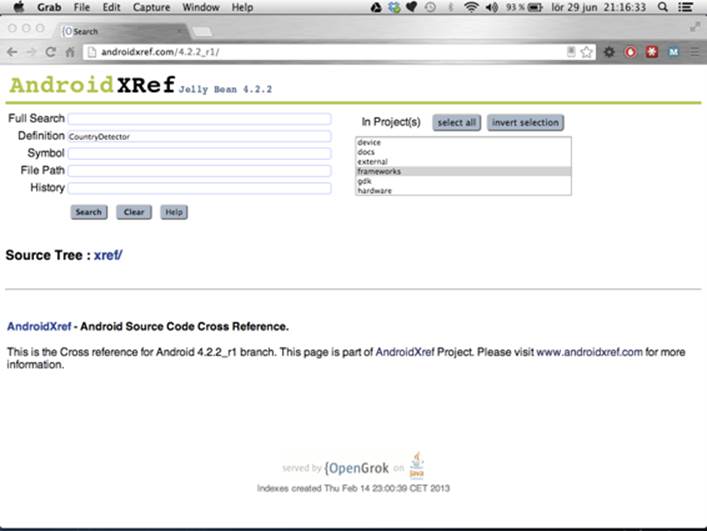
Figure 15-2 The Search dialog box at AndroidXRef
Another way to look for hidden APIs is through the View Source link on the Android API reference site (see
Figure 15-3). This site doesn’t provide a search method like AndroidXRef does, but it’s easier to access directly
from the official API documentation.
Although searching is good if you know where and what to look for, finding the code that does what you need
can be difficult. You can find most of the hidden APIs in the frameworks project. All of the APIs in the android
package can be found here as well as most of the APIs in com.android.internal.
Often the hidden API you’re looking for is part of a class that is public. For instance, the WifiManager has
several public, unhidden, methods but also a number of useful hidden methods and fields. In other cases, the
class is hidden from the public API, such as the CountryDetector class shown earlier in Figure 15-1.
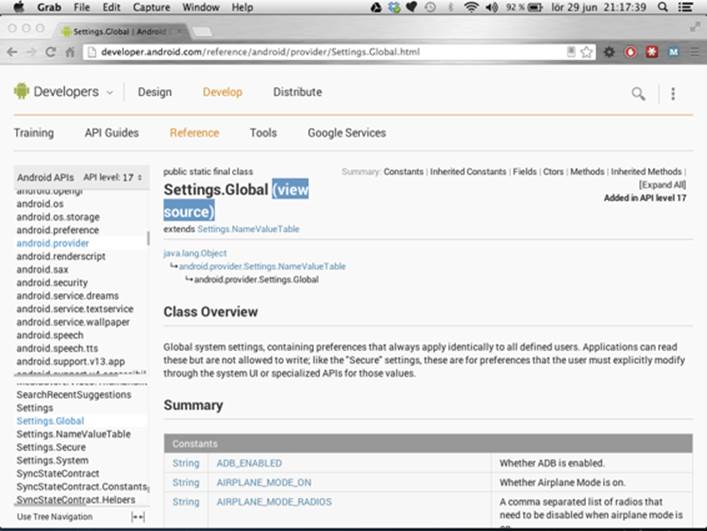
Figure 15-3 The View Source link for Settings .Global on the API reference site
Safely Calling Hidden APIs
Constant fields, such as broadcast actions or provider Uri, are major parts of the useful hidden APIs. You can
copy these fields into your own code and use them just as they are. The easiest way to do so is to copy the
entire class (for instance, directly from AndroidXRef) and place it in your project. If these hidden APIs have been
changed in the different Android API levels, you can keep a copy of each version in its own package. This way,
you can use a hidden API and still target multiple Android versions.
For most situations in which you need to use a hidden API that consists of constants (such as
broadcast actions), I recommend copying the hidden constants from the Android source code.
For APIs that require compile-time linking—that is, interfaces, classes, and methods—you have two choices. You
can compile your application with a modified SDK that contains a JAR file with all the classes and interfaces you
need. The other solution is to use the Reflection API in Java to dynamically look up the classes and methods you
want to call. Each method has its pros and cons, and your choice will depend on the situation.
Modifying the SDK will effectively bind your code to the device you use when generating the modified
android.jar (see the section “Extracting Hidden APIs from Device”) and could result in your code crashing
on other devices if you’re not careful. However, there’s no performance penalty with this solution. Using the
Reflections API allows you to target multiple Android versions but can penalize performance because it requires
a runtime lookup of classes and methods. I discuss both these approaches in the following sections.
Extracting Hidden APIs from a Device
To do compile-time linking to the hidden APIs, you first need to extract and process the libraries from a device.
You can extract these libraries either from an emulator instance or from a device because they’ll be used only
for compiling your code. Because this work requires a number of files from a device, I recommend that you
create an empty working directory. Since you may want to perform this task for multiple API versions, you can
create one working directory per API level.
$ adb pull /system/framework .
pull: building file list...
pull: <files pulled from device>
63 files pulled. 0 files skipped.
4084 KB/s (35028810 bytes in 8.374s)
Run the preceding command from your working directory, and you’ll see that it pulls all the files from the
directory /system/framework on the device. Once the extraction is completed, you can list the files, and the
output should look somewhat like the following (it may vary depending on the device’s manufacturer and the
version of Android you’re using):
$ ls
am.jar ext.jar
am.odex ext.odex
android.policy.jar framework-res.apk
android.policy.odex framework.jar
android.test.runner.jar framework.odex
android.test.runner.odex ime.jar
apache-xml.jar ime.odex
apache-xml.odex input.jar
bmgr.jar input.odex
bmgr.odex javax.obex.jar
bouncycastle.jar javax.obex.odex
bouncycastle.odex mms-common.jar
bu.jar mms-common.odex
bu.odex monkey.jar
com.android.future.usb.accessory.jar monkey.odex
com.android.future.usb.accessory.odex pm.jar
com.android.location.provider.jar pm.odex
com.android.location.provider.odex requestsync.jar
com.android.nfc_extras.jar requestsync.odex
com.android.nfc_extras.odex send_bug.jar
com.google.android.maps.jar send_bug.odex
com.google.android.maps.odex services.jar
com.google.android.media.effects.jar services.odex
com.google.android.media.effects.odex settings.jar
com.google.widevine.software.drm.jar settings.odex
com.google.widevine.software.drm.odex svc.jar
content.jar svc.odex
content.odex telephony-common.jar
core-junit.jar telephony-common.odex
core-junit.odex uiautomator.jar
core.jar uiautomator.odex
core.odex
These files are all the Java-based system libraries on your Android device. They are the optimized DEX files that
are loaded by the Dalvik VM. The next step is to decide which file contains the hidden APIs you want to convert
back to Java class files that you can use when compiling your application. Most of the hidden APIs are placed in
framework.odex, whereas the crypto-libraries are in the bouncycastle.odex file.
Starting with Android 4.2, several hidden APIs that used to be in framework.odex are now placed
in other files. For instance, the hidden Telephony class is now optional (because not all Android
devices have telephony support) and can now be found in telephony-common.odex.
Once you know which file you need to convert, you download a tool named Smali that can convert the
optimized DEX files (.odex) to an intermediate format (.smali). You can then convert this intermediate
format back to Java class files using another tool named dex2Jar. You can download Smali at https://
code.google.com/p/smali, and you can find dex2Jar at https://code.google.com/p/dex2jar.
Download both and extract them to an appropriate location (for instance, next to your working directory). Start
by converting the ODEX file to the intermediate format as shown here:
$ mkdir android-apis-17
$ java -jar ~/Downloads/baksmali-2.0b5.jar -a 17 -x framework.odex -d . -o
android-apis-17
When you run this command from the same directory where you pulled the files from the device, the file
framework.odex is converted to a number of SMALI files placed in the correct package structure in the
directory android-apis-17. Next, you need to convert these files into a single DEX file.
$ java -jar ~/Downloads/smali-2.0b5.jar -a 17 -o android-apis-17.dex
android-apis-17
You can repeat the two preceding steps for each file you need to convert. For instance, on Android 4.2, the
hidden Telephony class is placed in telephony-common.odex. This way, you can create a single JAR file in
the end with all the hidden classes you need, even if they’re contained in different ODEX files from the start.
Finally, you need to use the dex2Jar tool to convert the DEX file into a JAR file containing all the Java class files.
$ ~/Downloads/dex2jar-0.0.9.15/d2j-dex2jar.sh android-apis-17.dex
dex2jar android-apis-17.dex -> android-apis-17-dex2jar.jar
The resulting JAR file contains all the classes, both hidden and public, from the original ODEX file (or files). To
use this file instead of the default android.jar in your SDK, simply rename it to android.jar and replace
it with the one in your SDK (for instance, <sdk root>/platforms/android-17/android.jar).
Remember to back up the original file in case you want to revert to the original SDK without the hidden APIs.
This approach provides you with a set of platform APIs that are guaranteed to work only on the device
you extracted the files from. Because this is the baseline for all other Android devices, I recommend
doing this only from a Nexus device with an official factory image. Perform this only on a non-Nexus
device if you need to use the hidden, proprietary APIs implemented by the device’s manufacturer (for
instance, a hidden camera extension API or something similar).
Error Handling for Modified SDK
When utilizing the approach for using the hidden APIs described previously, it’s difficult to know whether the
method signatures from your extracted classes match the ones that users have on their devices. Although
modifying the SDK may work on the device you use for development, a user who installs your application may
have a device where the hidden APIs are modified by the vendor. When that happens, your application will
throw a NoSuchMethodException or ClassNotFoundException.
You can deal with this situation a couple of ways. You can combine this approach with the use of reflections
(described in the next section) to detect the presence of your hidden APIs. In this way, you have the benefit of
both solutions, which I recommend. Another way is to simply catch the exception so that you can perform some
graceful degradation of the functionality.
Whatever you do, be sure to perform some error handling when calling hidden APIs. At the very least, you can
limit the availability of your application to the devices you’ve tested on. You always want to avoid having your
application crashing on a user’s device.
Calling Hidden APIs Using Reflections
The Reflections API in Java (found in the java.lang.reflect package) gives you a safer approach than
modifying the SDK does because you can use it to detect the presence of an API (or lack thereof) before calling
it. However, because all binding and invocation of hidden APIs occur in runtime, this method is also slower than
the alternative method described in the previous section.
Calling a hidden API using Reflections is a two-step process. First, you need to look up the class and methods
you want to call and store a reference to the Method object. After you have this reference, you can invoke
the method on an object. The two steps are shown in the following code, where you look up the method for
checking the state of Wi-Fi tethering:
public Method getWifiAPMethod(WifiManager wifiManager) {
try {
Class clazz = wifiManager.getClass();
return clazz.getMethod(“isWifiApEnabled”);
} catch (NoSuchMethodException e) {
throw new RuntimeException(e);
}
}
public boolean invokeIsWifiAPEnabled(WifiManager wifiManager,
Method isWifiApEnabledMethod) {
try {
return (Boolean) isWifiApEnabledMethod.invoke(wifiManager);
} catch (IllegalAccessException e) {
throw new RuntimeException(e);
} catch (InvocationTargetException e) {
throw new RuntimeException(e);
}
}
The preceding example shows a fairly simple invocation using the Reflections API. If the hidden method
takes parameters, you need to provide the classes for those in the call to Class.getMethod(). Also, in this
example, the only error handling is to throw a RuntimeException. In your own application, you should
handle errors properly and do a graceful degradation of your application’s feature set.
Never assume that methods you retrieve using Reflections are available on all devices. If they’re hidden, the
manufacturer may have modified them and changed their signature (number of parameters, for instance).
In the early days of Android, this situation was quite common because many features were missing in the
platforms added by manufacturers. However, now you can usually expect the API to be there, just take care to
do proper error handing and feature fallback when using the hidden APIs.
Examples of Hidden APIs
In this section, I show a few examples of how hidden APIs are used. These are some of the typical scenarios I’ve
discovered that developers are asking for.
Receiving and Reading SMS
The most commonly requested hidden API in Android is related to receiving and reading SMS. Although the
public API contains two permissions, RECEIVE_SMS and READ_SMS, the actual API for performing these
actions is hidden.
An application that must be able to receive an SMS must declare the use of the RECEIVE_SMS permission and
implement a BroadcastReceiver that is triggered for incoming SMS.
public class MySmsReceiver extends BroadcastReceiver {
// Hidden constant from Telephony.java
public static final String SMS_RECEIVED_ACTION
= “android.provider.Telephony.SMS_RECEIVED”;
public static final String MESSAGE_SERVICE_NUMBER = “+461234567890”;
private static final String MESSAGE_SERVICE_PREFIX = “MYSERVICE”;
public void onReceive(Context context, Intent intent) {
String action = intent.getAction();
if (SMS_RECEIVED_ACTION.equals(action)) {
// “pdus” is the hidden key for the SMS data
Object[] messages =
(Object[]) intent.getSerializableExtra(“pdus”);
for (Object message : messages) {
byte[] messageData = (byte[]) message;
SmsMessage smsMessage =
SmsMessage.createFromPdu(messageData);
processSms(smsMessage);
}
}
}
private void processSms(SmsMessage smsMessage) {
String from = smsMessage.getOriginatingAddress();
if (MESSAGE_SERVICE_NUMBER.equals(from)) {
String messageBody = smsMessage.getMessageBody();
if (messageBody.startsWith(MESSAGE_SERVICE_PREFIX)) {
// TODO: Message verified - start processing...
}
}
}
}
The preceding code shows a BroadcastReceiver that listens for the Intent action android.provider.
Telephony.SMS_RECEIVED (remember to add this to the intent-filter in the manifest as well). The
only “hidden” parts in this example are this Intent action and the String to retrieve SMS data from the
Intent (“pdus”).
For reading already received SMS, you need to query a hidden ContentProvider and declare the use of the
permission READ_SMS. The hidden class Telephony, found in the android.provider package, provides
all of the information needed. The best way to use this class is to simply copy it to your own projects and refactor
it to suit your package structure. Because it also contains calls to other hidden classes and methods, you must
either remove or refactor these calls to make your code compile. Depending on how much of this hidden API
you’ll need to use, sometimes it’s enough to simply copy a number of constant declarations instead of the
entire class.
@Override
public void onActivityCreated(Bundle savedInstanceState) {
super.onActivityCreated(savedInstanceState);
mAdapter = new SimpleCursorAdapter(this,
R.layout.sms_list_item, null,
new String[] {Telephony.Sms.ADDRESS, Telephony.Sms.BODY,
Telephony.Sms.DATE},
new int[] {R.id.sms_from, R.id.sms_body, R.id.sms_received},
CursorAdapter.FLAG_REGISTER_CONTENT_OBSERVER);
setListAdapter(mAdapter);
getLoaderManager().initLoader(0, null, this);
}
public Loader<Cursor> onCreateLoader(int id, Bundle args) {
Uri smsUri = Telephony.Sms.CONTENT_URI;
return new CursorLoader(getActivity(), smsUri, new String[] {
Telephony.Sms._ID,
Telephony.Sms.ADDRESS,
Telephony.Sms.BODY,
Telephony.Sms.DATE},
null, null, Telephony.Sms.DEFAULT_SORT_ORDER);
}
Here are two methods shown from a custom ListFragment, which loads a Cursor from the Content
Provider for SMS and loads that into a SimpleCursorAdapter. The Uri for the provider and the name
of the columns are all the content used from the Telephony class.
Wi-Fi Tethering
Android smartphones can enable Wi-Fi tethering, which makes it possible to create a mobile Wi-Fi hotspot that
allows other devices (usually your laptop) to connect to the Internet when you’re traveling. This feature is a very
popular one on Android, but it has caused some problems for application developers.
When the user enables Wi-Fi tethering, the state of the Wi-Fi is neither on nor off, but “unknown” if you query it
through the public API. In a previous example (see the “Calling Hidden APIs Using Reflections” section), I showed
how to detect whether Wi-Fi tethering is enabled using hidden method isWifiApEnabled(). A number of
other hidden methods in the WifiManager class provide you with more information about Wi-Fi tethering.
private WifiConfiguration getWifiApConfig() {
WifiConfiguration wifiConfiguration = null;
try {
WifiManager wifiManager =
(WifiManager) getSystemService(WIFI_SERVICE);
Class clazz = WifiManager.class;
Method getWifiApConfigurationMethod =
clazz.getMethod(“getWifiApConfiguration”);
return (WifiConfiguration)
getWifiApConfigurationMethod.invoke(wifiManager);
} catch (NoSuchMethodException e) {
Log.e(TAG, “Cannot find method”, e);
} catch (IllegalAccessException e) {
Log.e(TAG, “Cannot call method”, e);
} catch (InvocationTargetException e) {
Log.e(TAG, “Cannot call method”, e);
}
return wifiConfiguration;
}
The preceding code shows how you can retrieve the WifiConfiguration for the Wi-Fi tethering settings
on a device. Note that calling these methods requires that your application have the permission android.
permission.ACCESS_WIFI_STATE. All Wi-Fi networks that an Android device has configured (that is,
connected to) can be enumerated as a list of WifiConfiguration objects through the WifiManager.
getConfiguredNetworks(). In each of the WifiConfiguration objects retrieved through this
method, the preSharedKey is set to null for obvious security reasons. However, when retrieving the
WifiConfiguration object for the Wi-Fi tethering settings as shown in the preceding code, you’ll find the
clear-text password present in the preSharedKey variable. In this way, your application can retrieve both the
name for the access point that is created when you activate Wi-Fi tethering and the password.
Although this feature can be considered a security flaw, it’s good to know that the permission needed to
activate Wi-Fi tethering requires your application to be signed with the system certificate. Thus, even if an
application can read the password, there’s no way for it to activate Wi-Fi tethering without the user’s consent.
Hidden Settings
An Android device has hundreds of different settings that are available through the class Settings. Besides
providing access to the value for each setting, it publishes a number of Intent actions that you can use
to launch a specific part of the settings UI. For instance, to launch the settings for airplane mode, you use
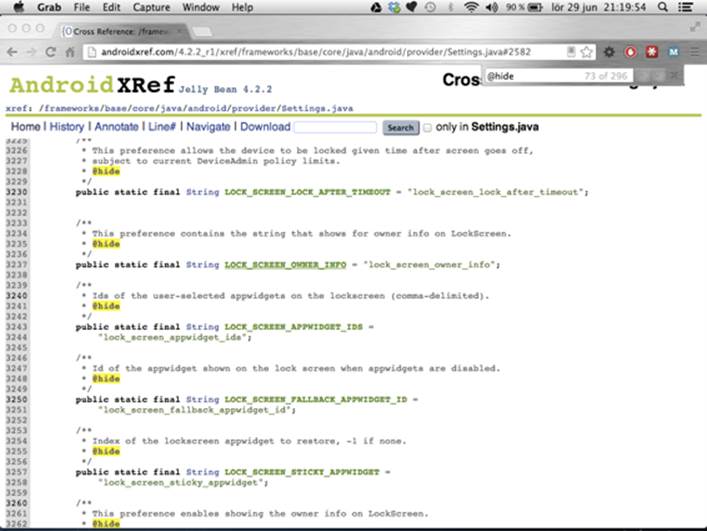
Settings.ACTION_AIRPLANE_MODE_SETTINGS when creating the Intent. Figure 15-4 shows how the
file Settings.java looks like when viewed through AndroidXRef.
Figure 15-4 Some of the hidden constants in the source file Settings.java
A number of hidden setting keys and Intent actions are in the Settings class, some of which can be very
useful when your application needs to figure out details about the device or when you want to present a
shortcut within your application to a certain system setting.
Summary
This chapter introduced how you can discover and use the hidden APIs in the Android platform. Although only
a few examples are shown, the number of available hidden APIs is quite large. Most of these APIs are not only
hidden but also protected with permissions with the signature or system protection level, which makes
them unusable for most Android developers. However, as you will see in the next chapter, they can be an
efficient method for building advanced applications with access to system APIs if you build them for a device
with a custom firmware.
Some of the APIs are simple constants used to access ContentProviders, Intent actions for launching
Activities or settings keys for reading hidden system settings, whereas others are methods that you need
to invoke.
Although most applications will never require these APIs, in some situations, you’ll benefit by using an API that
is officially unavailable. Using the hidden APIs in a smart way will allow you to further enhance your apps.
Further Resources Websites
An index of all the Android source code sorted according to specific versions: http://androidxref.com
The Java tutorials on the Reflection API: http://docs.oracle.com/javase/tutorial/reflect
The utility for converting ODEX files to DEX format: https://code.google.com/p/smali
The utility for converting DEX files to JAR files with Java classes: https://code.google.com/p/dex2jar
All materials on the site are licensed Creative Commons Attribution-Sharealike 3.0 Unported CC BY-SA 3.0 & GNU Free Documentation License (GFDL)
If you are the copyright holder of any material contained on our site and intend to remove it, please contact our site administrator for approval.
© 2016-2026 All site design rights belong to S.Y.A.